
Process Template Settings
To edit a Process template, do the following:
- Click Administration > Processes > Template Diagrams > Click the Card of the process you want to edit.
Once the template has loaded, use the Settings Panel to make changes. To access the Settings Panel, click the “gear” icon on the top right side of the page.
Process Description
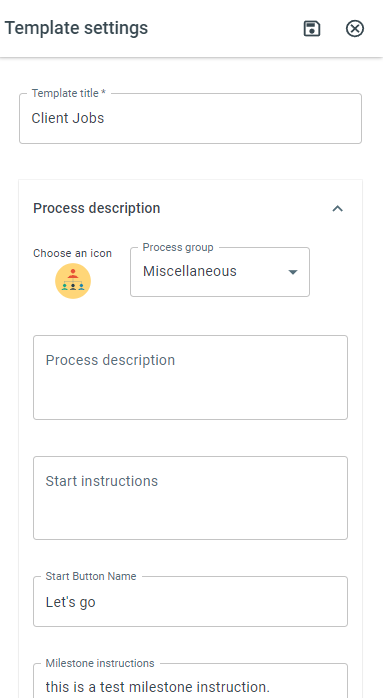
-
Choose a Process Icon - Choose an icon to identify the template
-
Process group - Select the Process group that this template is a part of
-
Process description - A description of the process and its purpose
-
Start Form Instructions - Instructions for launching the process. These instructions will be displayed on the Start process screen
-
Start Button Name - The text that will be displayed on the Process Start button
-
Milestone instructions - These instructions will be displayed at the top of the milestone report for this process
Advanced settings
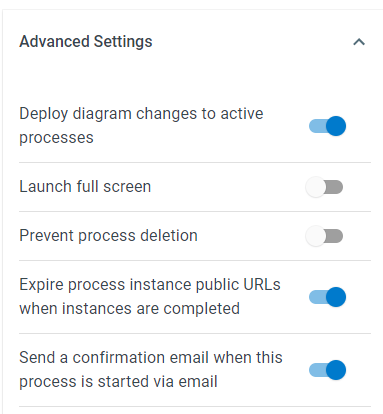
-
Display on start menu - With this setting enabled, the template appears on the Start a Process screen
-
Deploy diagram changes to active processes - With this setting enabled, changes made to the process diagram will be applied to running processes unless the changes will cause breaking changes to the running process
-
Launch full screen - With this setting enabled, when the process is launched, tasks will be opened in Full Screen mode.
-
Prevent process deletion - With this setting enabled, it will not be possible to delete the template.
-
Expire process instance public URLs when instances are completed - With this setting enabled, public links for the process instance will expire once the process is completed, canceled, or deleted. Anyone who opens an expired merge document link is told the page has expired and asked to contact the person who sent the link for a new one.
-
Send a confirmation email when this process is started via email - When this process is started via email, an email will be sent to the process initiator letting them know that the process has been started.
-
Number of fields to display in task assignment emails - See Number of Fields Displayed in Task Assignment Emails
-
AI Employee Queue Priority (Default: 3 Range: 1-5) - Sets the priority of this process’s AI Employee jobs in the work queue, 1 being the highest
Instance Descriptions
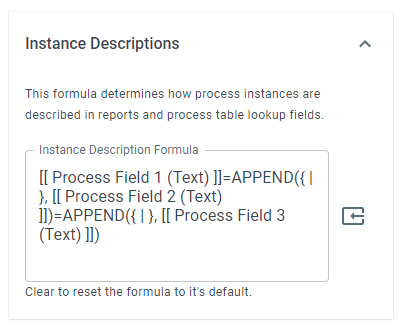
- Instance Description Formula - Decides how each running process is described in reports, lists, calendars, and Process Table Lookup fields. See Instance Description Formula
AI Training Videos
-
When the process was built from screen recordings, this section lists the training videos so you can rewatch them. It only appears when training videos exist for the template
-
A new recording is listed here once ProcessPlan has finished building the process from it, so a video you have just recorded may not appear straight away
Questions About This Process
-
When the process was built from a screen recording, ProcessPlan asks about the things the recording could not show: how the work arrives, what counts as one item, which account to sign in with, how a record is matched, where a value comes from when nothing on screen showed it, what to do when something a step relies on is not there, and what to do when something is missing. Where it helps, a question also says what the process does until you answer. This section lists every one of them, with the number still waiting on you in the heading. It only appears when there are questions, so a process you built by hand will not have it
-
Each question shows the answer underneath it once one has been given, with who answered it and when, so you can see what has already been settled instead of being asked twice. A question nobody could answer yet stays in the list with the reason, and who gave it
-
Answers are given by chatting with your AI Strategist - use Answer the questions next to the recording under AI Training Videos. See Answering the questions
Process Resources
- Attach reference files to the template itself, such as manuals or specification documents, so they’re on hand for everyone working the process
Knowledge Base Settings
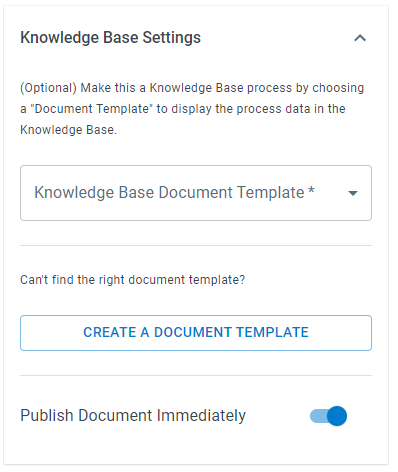
-
Knowledge Base Document Template - Select a knowledge base Document template to display the data from this process
-
Create a Document Template - This button leads to the document template creator
-
Publish Document Immediately - With this setting enabled, Knowledge Base documents will be published immediately upon Process completion
View Template
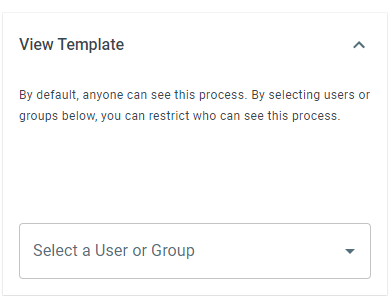
- Determine which users (or groups) can View this process template. If no users or groups are listed here, all users who are not restricted via User Security will be able to see the template.
Process Owners
- Designate which users (or groups) own this process. Owners are the people accountable for how the process runs, and the first person or group in the list is the primary owner. The AI Strategist brings its process-level questions and requests to the owners first. If no owners are designated, it reaches out to the people who maintain the template instead - the designated editors, or the person who last edited or created it. Ownership does not change who can view, edit, or launch the template - use the sections below for those permissions.
Edit Template
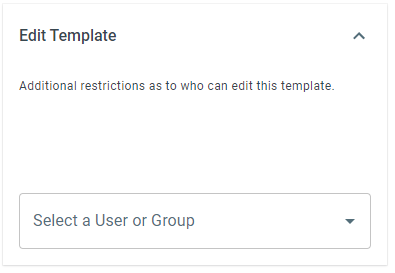
- Determine which users (or groups) can Edit this process template. If no users or groups are listed here, all users who are not restricted via User Security will be able to edit the template.
Start Process Instances
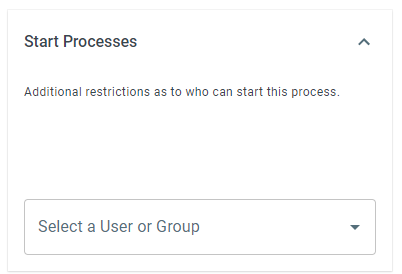
- Determine which users (or groups) can Launch this process template. If no users or groups are listed here, all users who are not restricted via User Security will be able to launch the template.
Default Instance Editability
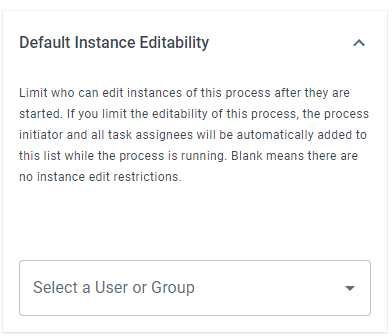
- Limit who can edit instances of this process after they are started. If you limit editability, the process initiator and all task assignees are automatically added to the list while the process is running. Blank means no restrictions. Apply change to all instances pushes the change to existing instances
Default Instance Visibility
- Limit who can see instances of this process after they are started, with the same behavior: initiator and task assignees are added automatically while the process runs, blank means no restrictions, and Apply change to all instances updates existing instances
Instance Data Retention
- Instance Data Retention Period (In Days) - Instance data for this process is automatically removed once the process has been completed or canceled and this many days have passed since it was started. A process that is still in progress is never removed, however long ago it started. 0 (the default) keeps the data forever. This applies only to this process
Public Forms
- Manage this template’s public forms and create a New Public Form - see Starting Processes via Public Form
Public Tables
- Manage public, view-only links to this process’s table and create a New Public Table, so external people can monitor progress - see Process Tables
Changes to Running Processes
-
Certain changes made to the underlying process template will be applied to all running instances of the process, while other changes will not appear on running instances
-
Tasks added to the end of any branch WILL NOT be added to running process instances
-
Any inbound links to existing tasks WILL be added to running process instances
See Managing Template Changes for how to control whether template edits are applied to running processes.