Public Tasks
Public Tasks allow individuals without a ProcessPlan account to complete tasks in a process.
To make a task Public, do the following:
-
Open the desired Process Template
-
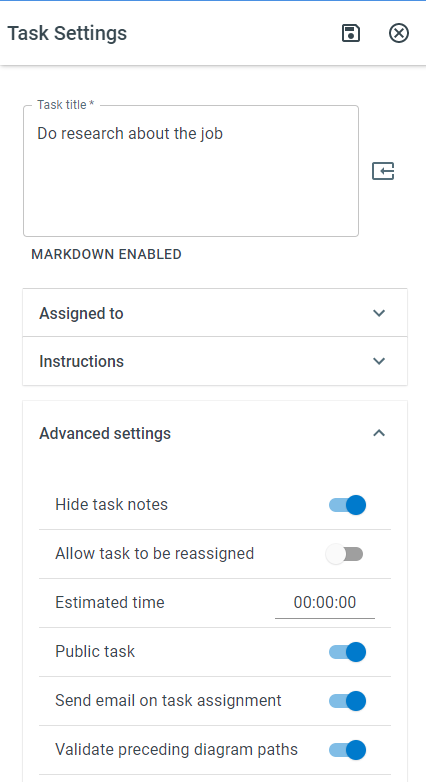
On the task(s) you want to make public, Right click and select Task Settings > Advanced settings > Public Task
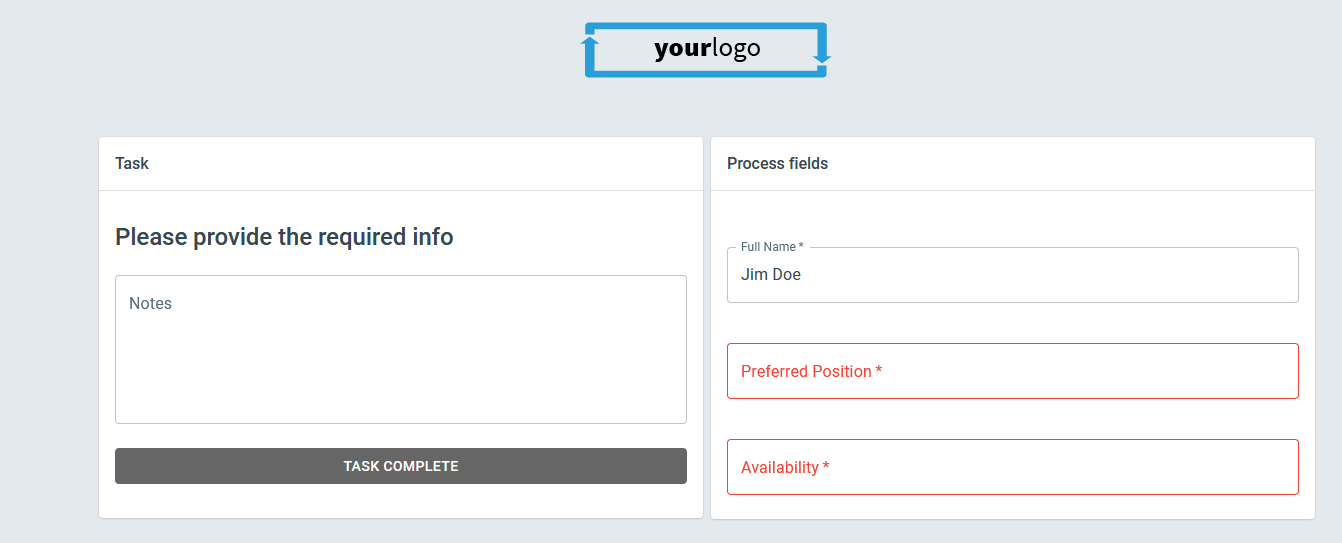
If the task is the first task following the submission of a public form, users will be shown that public task with all the fields and responses that would normally be available to a ProcessPlan user. Users will continue to be assigned public tasks until they reach a task that is not public; at that point the external user will no longer have access to the process.
Sending the Link to a Task
If a Public Task is in the middle of a process, you can send a link to the public task. To send a link to a public task, do the following:
-
Create an Automated Action email with a trigger of When a task is assigned or When a task has been pending, apply the trigger to the task that will be Public
-
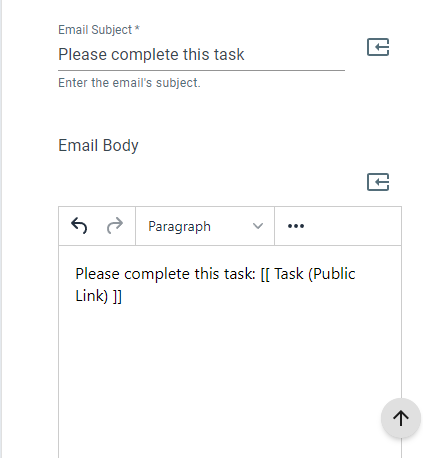
In the body of your Automated Action email, insert the Task (Public Link) field token
Forwarding Users to Another URL after Public Task Completion
To send users to another webpage after they complete a public task, do the following:
-
Open the Automated Action email that sends the public task link
-
Ensure that you are using the Public URL version of your public task token. Note: To get the URL version of a token, click Show advanced on the field token selector
-
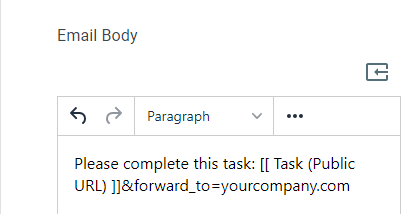
Append
&forward_to={the website you want to send users to}