
Editing Response Settings
Each response in your Process has a set of options that can affect the flow of the process and user experience. To edit response settings, do the following:
-
Open the process that has the responses you want to edit (Administration > Processes > Template Diagrams > Card of the Process)
-
Right-click on the response > Response Settings
-
Response - The text displayed on the response
-
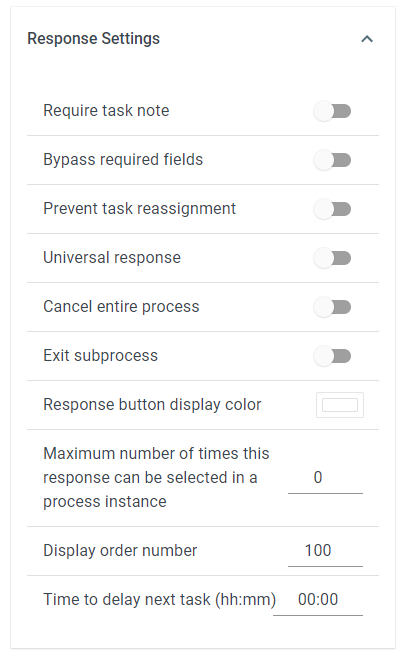
Require task note - With this setting enabled, a task note will be required whenever this response is selected
-
Bypass required fields - With this setting enabled, users will be able to select this response without filling in required fields. When this option is enabled, required task checklists will also be bypassed.
-
Prevent task reassignment - With this setting enabled, the task will not be reassigned on loopback if this response is selected.
-
Universal response - With this setting enabled, once this response is selected, all path validation will be automatically satisfied
-
Cancel entire process - With this setting enabled, this response will cancel the process
-
Hide response if the task is past due - With this setting enabled, the response will not appear on the task panel once the task is past due.
-
Exit subprocess - If this response is a part of a subprocess, selecting this response will exit that subprocess
-
Response button display color - The color of the response button on the Task Panel
-
Maximum number of times this response can be selected in a process instance - Once the maximum number of times has been reached, the response will disappear from the task panel. The default is zero, meaning the response will not disappear.
-
Display order number - The order in which this response will be displayed on the task panel
-
Time to delay next task (hh:mm) - Once this response is chosen, the assignment of the next task will be delayed for this specified amount of time.
-
Hide response if formula evaluates to true - The response will not appear on the task panel if the formula in the Hide Formula field evaluates to true.
AI Strategist Signal
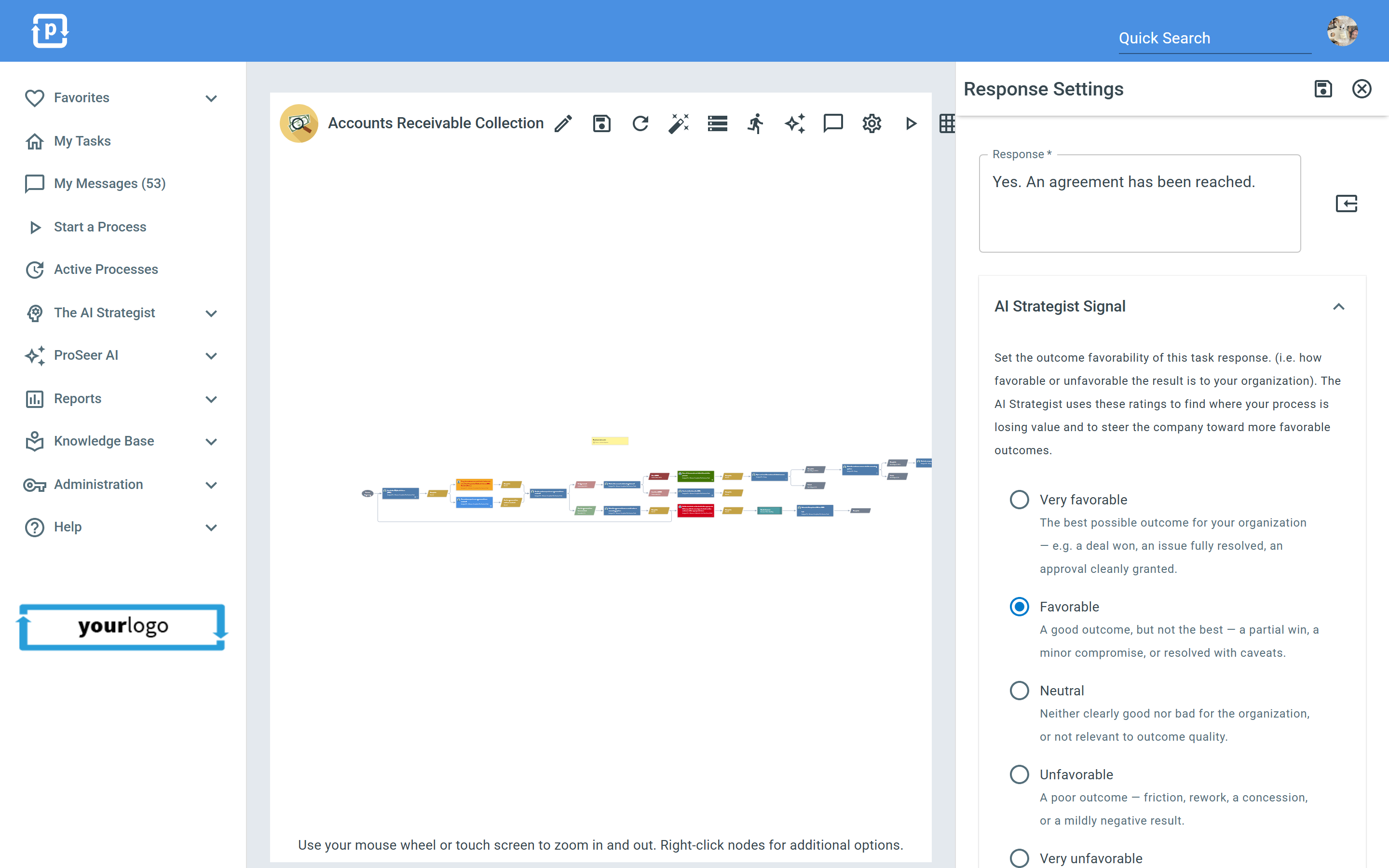
Section titled “AI Strategist Signal”Each response can also carry an AI Strategist Signal - a rating of how favorable the outcome is for your organization when this response is chosen. Open the AI Strategist Signal panel at the top of the Response Settings form and select one of five ratings:
-
Very favorable - The best possible outcome for your organization - e.g. a deal won, an issue fully resolved, an approval cleanly granted
-
Favorable - A good outcome, but not the best - a partial win, a minor compromise, or resolved with caveats
-
Neutral - Neither clearly good nor bad for the organization, or not relevant to outcome quality
-
Unfavorable - A poor outcome - friction, rework, a concession, or a mildly negative result
-
Very unfavorable - The worst outcome - e.g. a deal lost, a customer churned, a compliance breach, or the process canceled
These ratings are the AI Strategist’s primary measure of process outcomes. As your processes run, the ratings of the responses chosen along the way combine into an outcome score for each completed process. The Strategist analyzes those scores to find where your processes are losing value - which decision points drive good or bad outcomes, which customers or areas of work are trending unfavorably, and where a change would steer the company toward more favorable results.
Tips for rating responses:
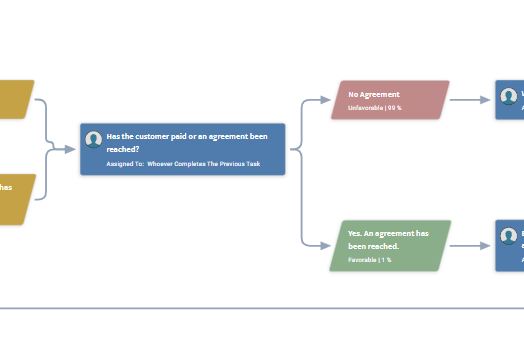
- Ratings matter most at decision points - tasks with more than one response, where the response chosen says something meaningful about the outcome. On the process diagram, each response at a decision point shows its rating (e.g. Favorable, Unfavorable) along with the percentage of the time that response has been selected; a response you haven’t rated yet shows a Set AI Signal reminder instead.
- You don’t need to rate every response. A task with a single response (such as “Done” or “Continue”) carries no outcome information, so it can be left unrated.