
Your Diagram Keeps Its Shape
When you arrange a process diagram, that arrangement is yours. Save the diagram and it is stored exactly as you laid it out: node positions, spacing, and the way connectors are routed. The next time you (or anyone else) opens it, it looks precisely the way you left it.
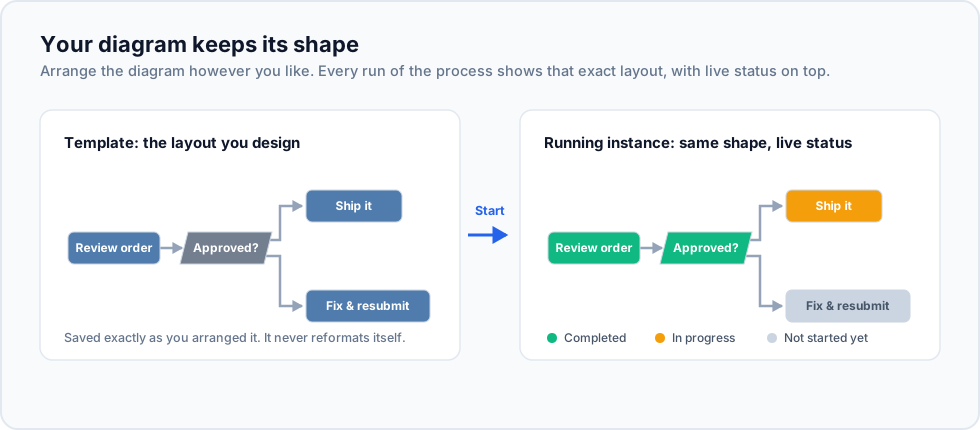
The shape follows the process everywhere
Section titled “The shape follows the process everywhere”The saved layout isn’t just for the template designer:
- Running processes - open the diagram of any live process and you’ll see the same shape you designed, with each step’s live status drawn on top.
- Heat maps - the heat map view uses the same layout too, so hot spots appear exactly where you’d expect them on the familiar shape of the process.
Because every view shares one layout, anyone who has seen the template can instantly orient themselves on a running process: the “Approved?” branch is always in the same place, on every run.
The editor never rearranges on its own
Section titled “The editor never rearranges on its own”The diagram only ever changes shape when you change it:
- Dragging nodes, rerouting connectors, and adding steps are all preserved on Save.
- Opening, editing, and saving a diagram never triggers an automatic re-layout.
- If you want a fresh automatic arrangement, ask for one: right-click empty canvas and choose Auto Format Diagram. Sticky notes keep their hand-placed positions; only the process flow is rearranged.
Tips for a layout worth keeping
Section titled “Tips for a layout worth keeping”- Put the main “happy path” on one straight line, and let exception branches step off it; the shape itself then tells the story of the process.
- Loop-back connectors take themselves below the steps they pass so returns never cross through other steps. Leave a little room under a row that a return has to travel back along.
- Use sticky notes to label regions of a large diagram (“Intake”, “Fulfilment”, “Billing”).