
Quickstart Guide
Getting started with ProcessPlan is simple; this guide will show you the basics.
To get started with ProcessPlan, do the following:
- Log in to your account
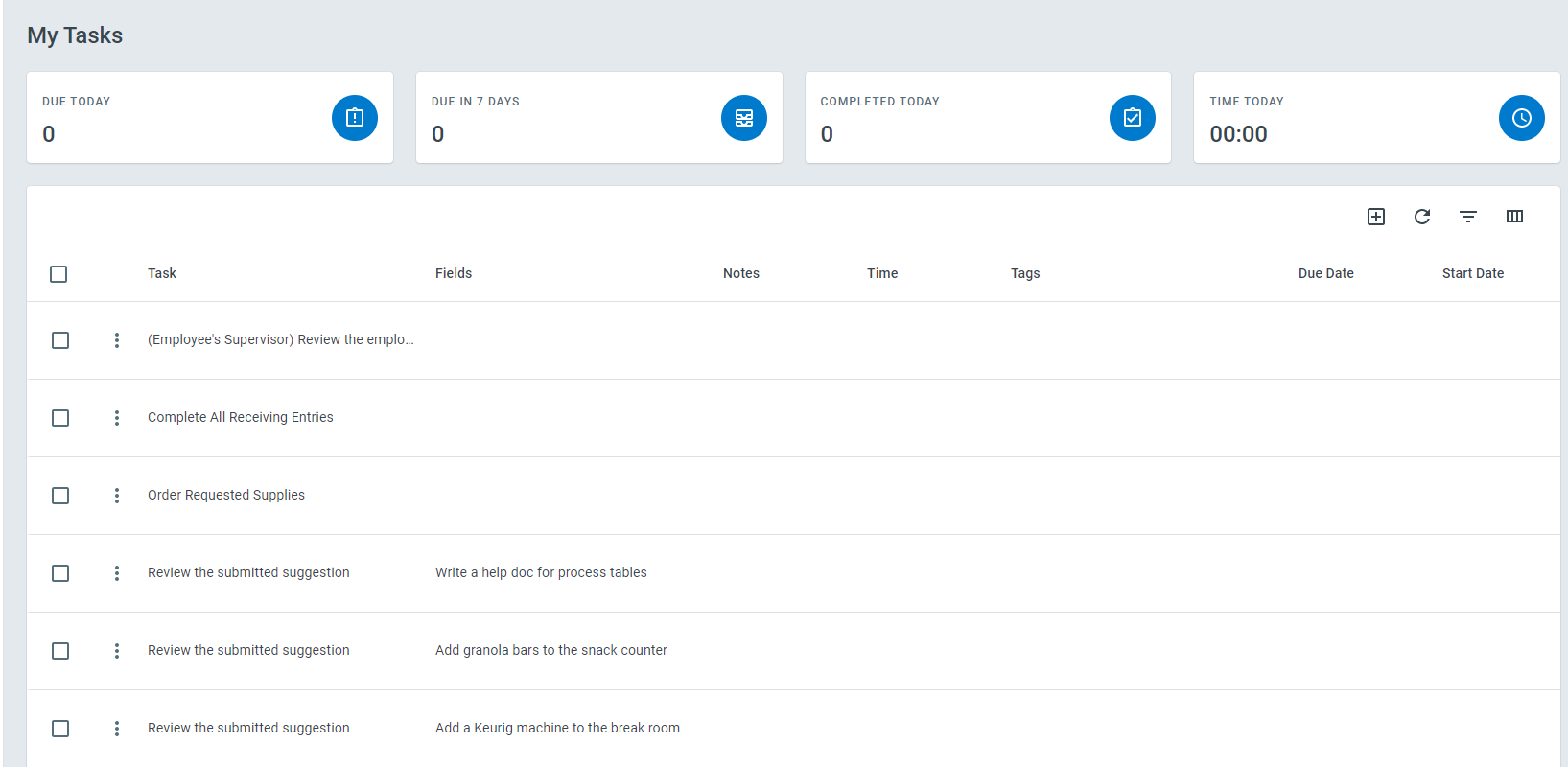
Upon login, you will be taken to your My Tasks screen; the My Tasks screen is your “to-do” list and it displays all tasks that have been assigned to you. Working from the top down always ensures you are working on the most important task in your organization.
As tasks are assigned to you, they will be displayed on your My Tasks screen
Responding to a Task
Section titled “Responding to a Task”To respond to a task, do the following:
-
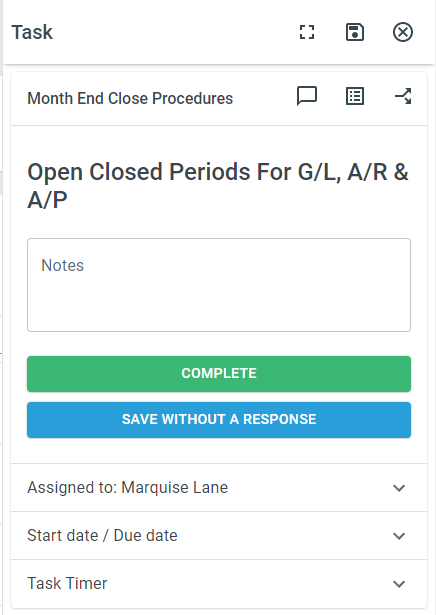
Click on the task you wish to respond to. Responses appear green unless a required field is blank.
-
Select your Response
Task Information
Section titled “Task Information”-
Start date - The day a task will start and appear on the My Tasks screen
-
Due date - When the task is due
-
Assigned to - The user this task is assigned to
-
Task Timer - The amount of time spent on this task
Viewing Process Progress
Section titled “Viewing Process Progress”ProcessPlan allows you to view the progress of any process you have access to
To access the Progress view, do the following:
-
Click Active Processes
-
Click the row of the process you want to see
Viewing Completed Tasks
Section titled “Viewing Completed Tasks”To view tasks completed in ProcessPlan, do the following:
- Click Reports > My Tasks > Completed
Meet your AI Strategist
Section titled “Meet your AI Strategist”Once you’re comfortable with tasks and processes, meet the AI Strategist - ProcessPlan’s always-on strategic partner. It records your company goals as strategic initiatives, briefs you each morning, and continuously surfaces insights from your processes and data. See Getting Started with the AI Strategist, or read the full story on our website.