Decision Tree Process Flow Diagrams
There are many different ways to design your Process Diagram based on what tasks need to be accomplished and what decisions need to be made. Tasks in your process may be completed manually or automatically via AI Employees and Automated Actions. Once the tasks are completed, the responses or decisions determine the next steps in the process.
Automated Action Responses
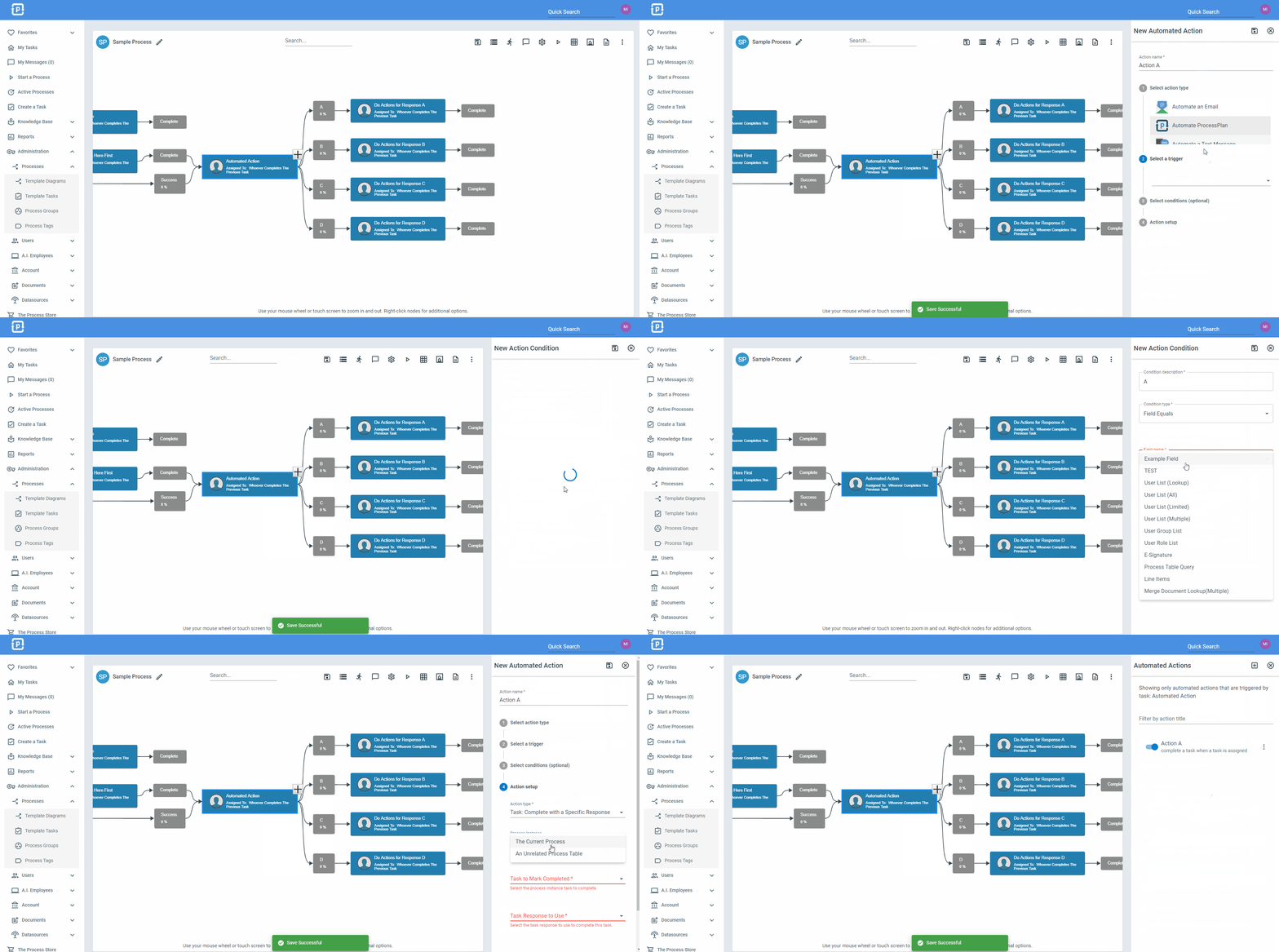
Section titled “Automated Action Responses”When creating your Process Diagram, tasks can also be completed via Automated Actions using information that is available in the current process instance. Using conditions via Automated Actions helps add customization to when automated actions are completed and which task responses are selected. To set up an Automated Action and add a condition:
-
Right-click the task that will be completed via Automated Action and select Automated Actions
-
In the Automated Actions Panel, click the Create New button
-
In Step 1: Give a name to your Automated Action and select the Automate ProcessPlan option
-
In Step 2: Select the trigger that will initiate this Automated Action. It is common for an Automated Action to initiate When a Task Is Assigned. Select the task you want the AI Employee to complete.
-
In Step 3: Add one or more conditions that must be met in order for a specified response to be selected. Click the Add Condition button and proceed to name and select condition type. Set your condition and click the Save button
-
In Step 4: Action Setup
-
For Action Type select Task: Complete with a Specific Response
-
For Process Instance select The Current Process
-
For Task to Mark Completed select the task that will be completed (commonly the task that initiated the Automated Action)
-
For Task Response to Use select the response that should be utilized if the applied condition(s) are met.
- Click Save