
My Messages
ProcessPlan has a built-in messaging system to communicate with anybody in your system. To send messages:
General Messages
Section titled “General Messages”-
Click on My Messages in the left-hand navigation menu
-
To send a new Message Thread, click New Message Thread (top right menu)
-
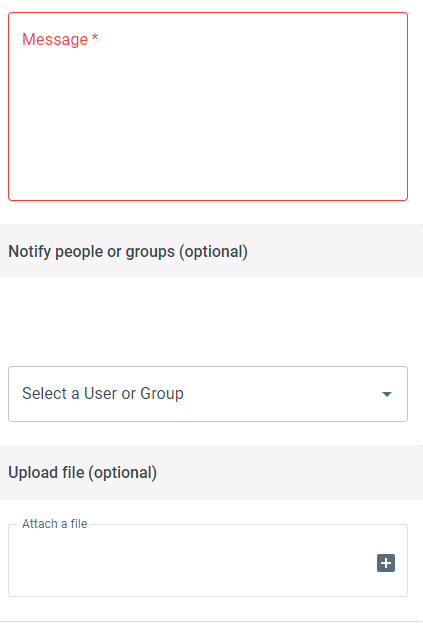
Here you can add:
-
Subject: Subject of the message
-
Message: Content of the message
-
User or Group: Recipients of the message
-
File Attachment: Add a file (optional)
-
Sending a Message from a Running Process or Task
Section titled “Sending a Message from a Running Process or Task”You can also send messages inside a specific process. This is effective when users need to discuss things about a particular process. To send a message inside a process:
-
Open the running process’s diagram - for example, from My Tasks, click a task’s navigation button and select Process Diagram
-
Click the Messages icon (top right menu)
-
Click New message
To send a message from a specific task:
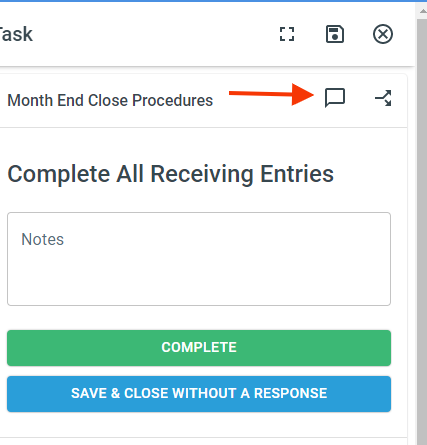
- From a task in the process you want to comment on, click the Message icon at the top of the task panel
Checking your Messages
Section titled “Checking your Messages”To check your Messages, do the following:
-
Click My Messages in the left-hand navigation menu
-
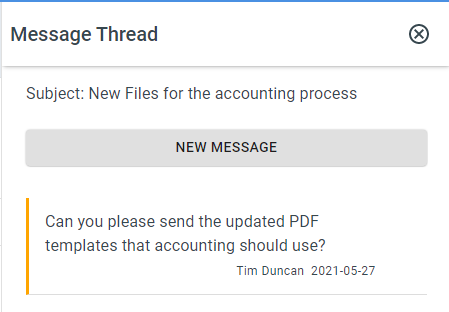
Click the message with the yellow stripe on the left side
Replying to a Message
Section titled “Replying to a Message”-
Click My Messages
-
Click the message you want to reply to > New Message
-
Type your message and click Send Message
Setting a Reminder on a Message
Section titled “Setting a Reminder on a Message”To have a message appear unread at a later time, do the following:
-
Click My Messages and open the message thread
-
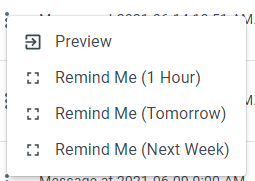
Click the 3 dot button on the message > Choose Remind Me (1 Hour), Remind Me (Tomorrow), or Remind Me (Next Week)
Email Notifications for Messages
Section titled “Email Notifications for Messages”ProcessPlan can send you an email any time you get an internal message. If the message was sent from a task, task details will be included in the email. To enable emails on ProcessPlan messages, do the following:
-
Click on your User Photo in the top right corner
-
Select Preferences > enable Send Emails on New Messages