Editing Tasks
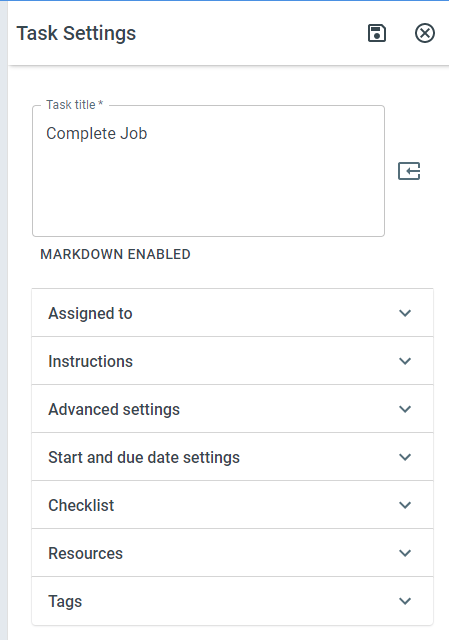
ProcessPlan gives you the ability to edit tasks by adding things like instructions, resources, checklists, and other settings.
To edit a task, do the following:
-
Click Administration > Processes > Template Diagrams > click the card of the process with the task you want to edit
-
Right-click on the Task you want to edit > Task Settings
Assigned To
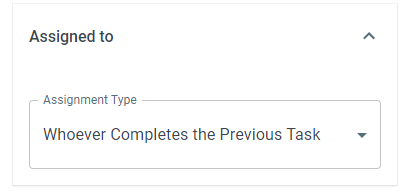
- Assignment Type - Select who the task will be assigned to
Instructions
-
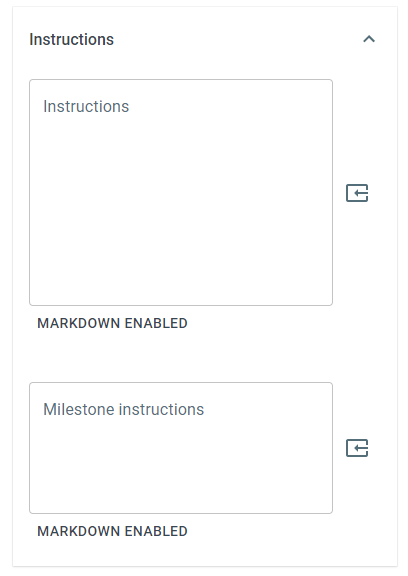
Instructions - Directions for completing the task
-
Milestone description - A description of the milestone this task represents in the process. This description will be displayed on the milestone report.
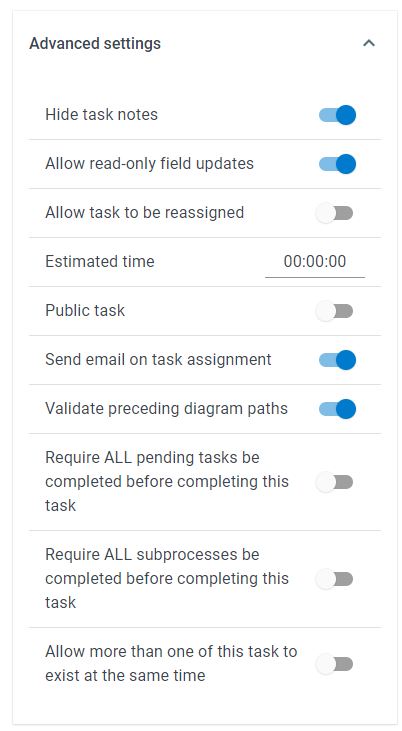
Advanced settings
-
Hide task notes - Enabling this setting will hide the task notes section for this task
-
Allow read-only field updates - Enabling this setting will allow you to make changes to fields marked read-only
-
Allow task to be reassigned - Enabling this setting allows the task to be assigned to another user once it has been started.
-
Estimated time - The estimated time it would take to complete this task
-
Public task - Enabling this setting allows the task to be completed by an external user
-
Show Next Public Task - After this public task is completed, the next public task in the process is shown to the external user right away
-
Send Emails on Task Assignments - With this setting enabled, an email will be sent to the assigned user.
-
Validate preceding diagram paths - This setting determines whether or not ProcessPlan will use path validation when assigning tasks. Path validation refers to ProcessPlan checking to make sure that the task is on a valid path before assigning it.
-
Require ALL pending tasks be completed before completing this task - Before assigning this task, all pending tasks must be completed.
-
Require ALL subprocesses be completed before completing this task - All subprocesses must be completed before this task is assigned.
-
Allow more than one of this task to exist at the same time - Enabling this setting allows more than one instance of this task to exist at the same time
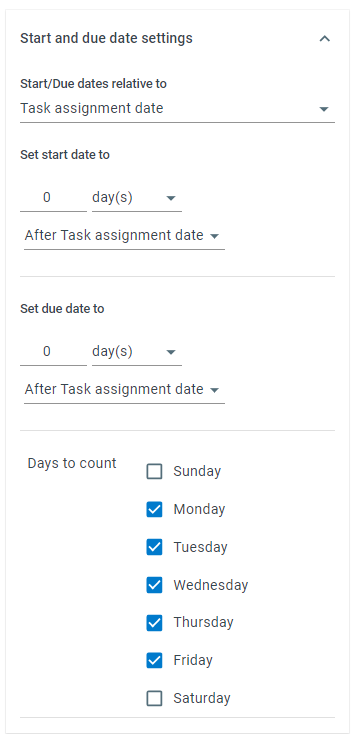
Start and Due Date Settings
Determine how start and due dates are calculated
-
Start/Due dates relative to - Determine the reference point for the start/due date calculation
-
Task created date - Start/due dates will be calculated around the date the task is created
-
Process start date - Start/due dates will be calculated around the date the process was started
-
Process Field Date - Start/due dates will be calculated around a date in a process field
-
Absolute Date - Start/due dates can be set to happen at specific times, not relative to any date
-
Days to count - Tasks will only be assigned on the days selected
Checklist
Checklist items are great for listing steps of the larger main task
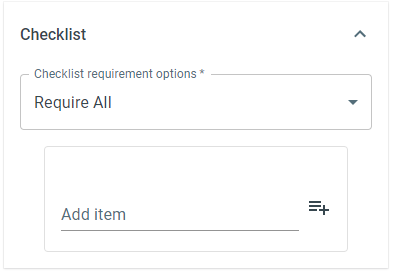
Checklist Requirement Options - Different options for your checklist requirement
-
Require All - All checklist items will be required before the task can be completed.
-
Require Any - At least one checklist item must be completed before the task can be completed
-
Require None - No checklist items will be required before completing the task
To add a checklist item, click into the Add item field and enter the description for your checklist item. Click the + button to the right to save the item.
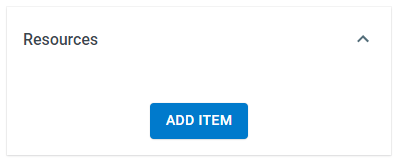
Task Resources
Resources are a great place to put any files or links users will need to complete the task.
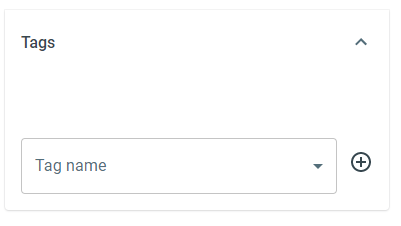
Tags
Tags are a great way to organize tasks so that they can be completed in batches. To add a tag, select the tag from the dropdown menu. To create a new tag, click the + button.