
Navigating the Tasks/Processes Screen
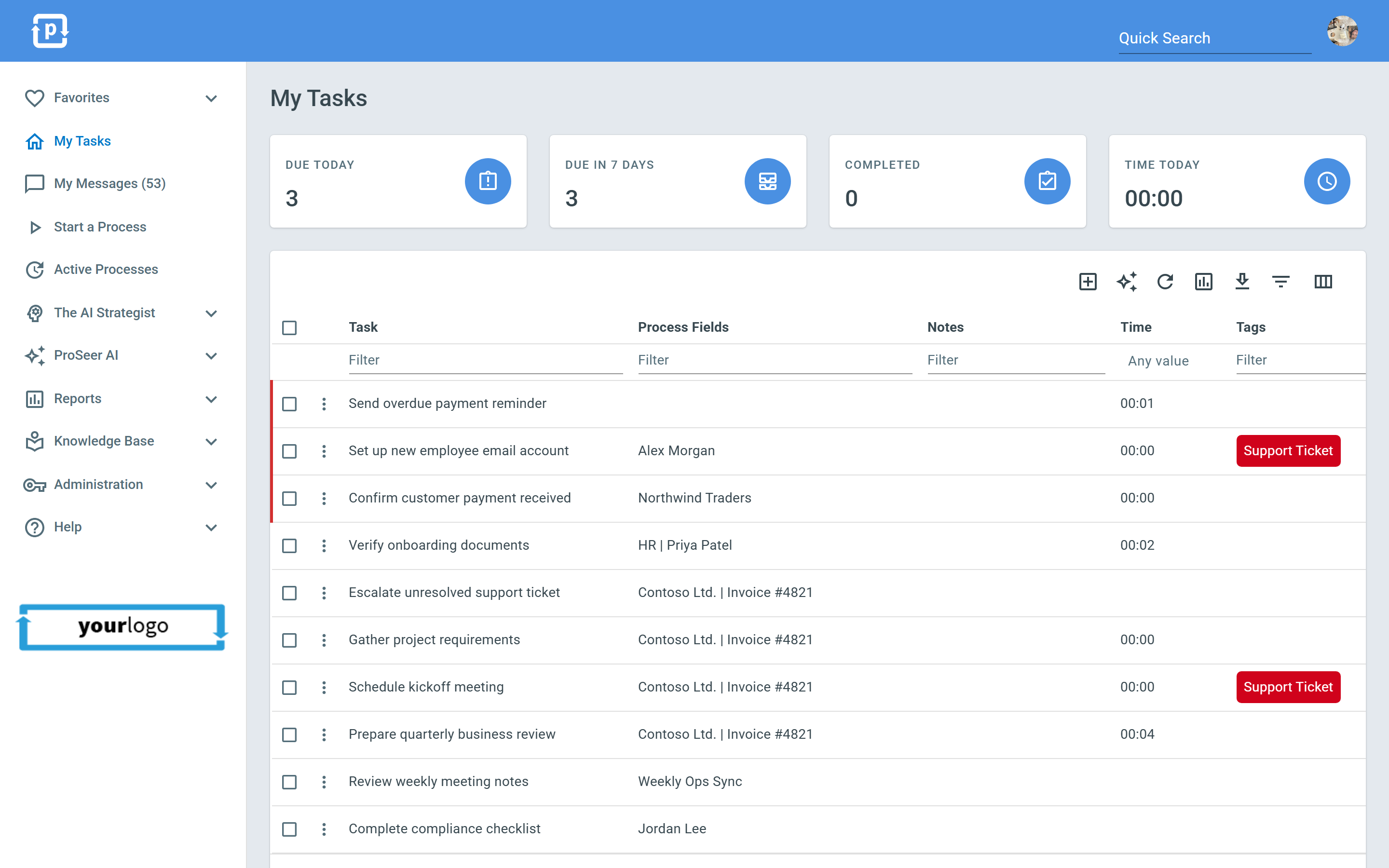
When viewing your tasks or processes you will find a menu like the one below.
Navigation on the page:
Section titled “Navigation on the page:”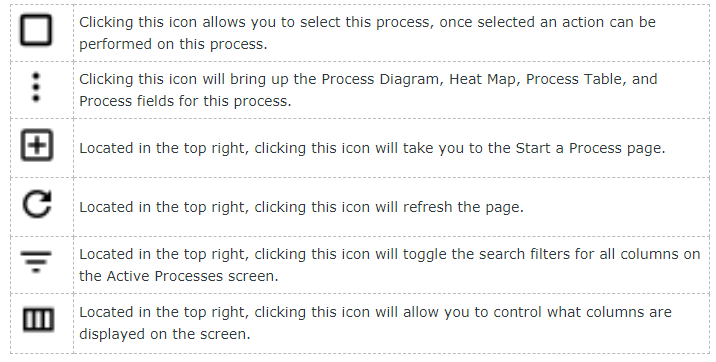
-
Checkbox - Clicking this icon allows you to select this process. Once selected, an action can be performed on it.
-
Navigation button - Clicking this icon brings up options for the row, including the Process Diagram, Current Task, Calendar, Heat Map, Process Table, Process Fields, AI Reports, and the template itself.
-
Plus button - On a process list, this starts a new process. On the My Tasks screen, it creates a New Personal Task instead.
-
Ask AI button - Opens the AI Assistant for the list you’re viewing.
-
Summary Report button - Opens a summary report of the current list.
-
Download button - Downloads the current list.
-
Refresh button - Clicking this icon will refresh the page
-
Filter button - Clicking this icon will toggle the search filters for all columns on the page
-
Column button - Clicking this icon will allow you to control what columns are displayed on the screen.