Via Recurring Schedule
Scheduling a process allows the process to be automatically launched at a set time or interval. To schedule a process, do the following:
-
Log in to your account
-
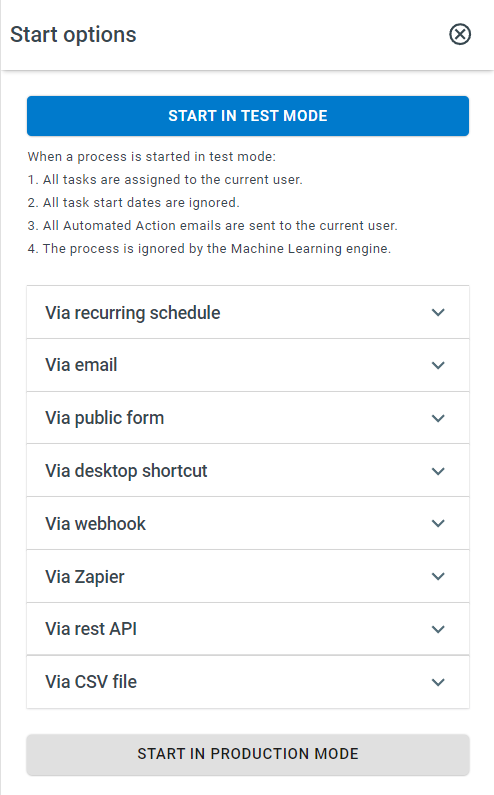
Click Administration > Processes > Template Diagrams > The card of the process you want to schedule > Start Process > Via recurring schedule
-
Click Create Schedule > Select a Schedule type, Start date, and Start time. Optionally, you can select a work schedule.
-
Click Save at the top of the panel
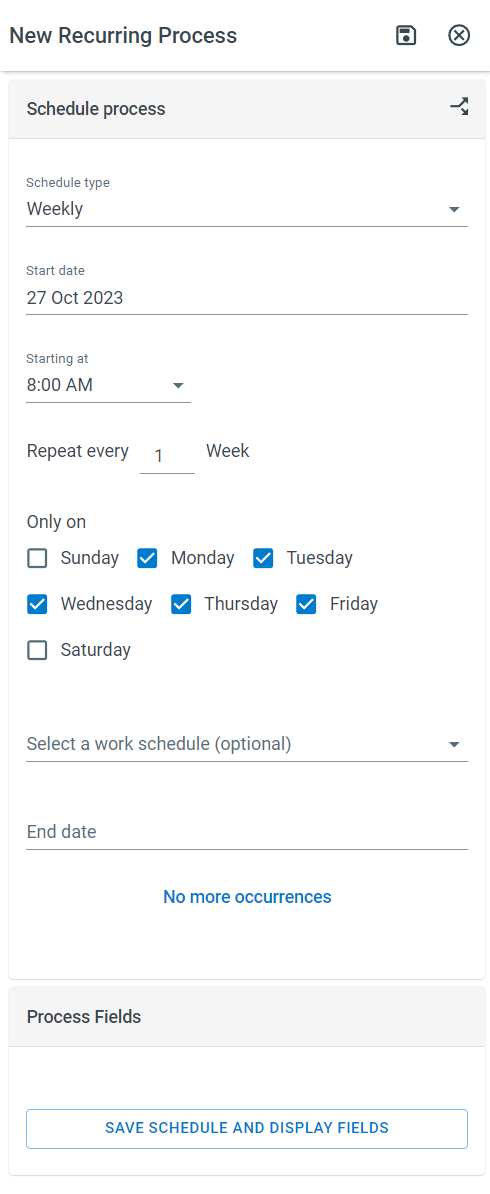
Schedule type - How often a process will be launched
-
On specific date - The process will be launched on the specific date and time specified by the user.
-
Hourly - The process will be launched in hourly increments as specified by the user, e.g., the process will launch every 2 hours.
-
Daily - The process will be launched in daily increments as specified by the user, e.g., the process will launch every 2 days.
-
Weekly - The process will be launched in weekly increments as specified by the user, e.g., the process will launch every 2 weeks.
-
Monthly on date - The process will be launched in monthly increments on a day specified by the user, e.g., the process will launch every month on the last day of the month.
-
Monthly on weekday - The process will be launched in monthly increments on a specific weekday in the month, e.g., the process will launch on the second Monday of each month.
-
Yearly on date - The process will be launched in yearly increments on a specific day of a month, e.g., the process will be launched on the 1st of January every year.
-
Yearly on weekday - The process will be launched in yearly increments on a specific weekday in a month, e.g., the process will launch every year on the last Monday in January.
Starting / Ending at - What time the process will be launched and what time it will stop being launched.
Start Date/End Date - The schedule for the process
Setting Process Initiator and Process Fields
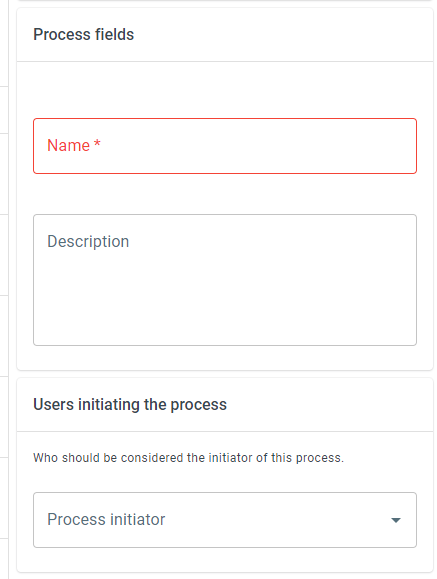
Section titled “Setting Process Initiator and Process Fields”Once a scheduled process has been saved, you can set a process initiator and Process field values for the scheduled process.
To enter additional process information, do the following:
-
Save your scheduled process
-
Scroll to the Process fields and Users initiating the process panels and enter the desired values
-
Click Save
Editing a Process Schedule
Section titled “Editing a Process Schedule”To edit a scheduled process, do the following:
-
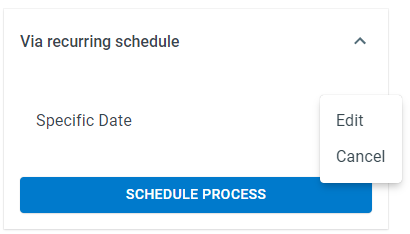
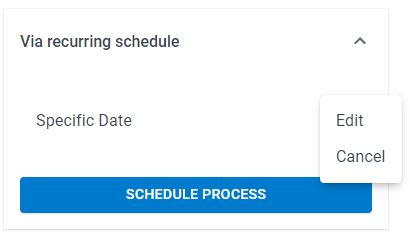
Click Administration > Processes > Template Diagrams > The card of the process you want to edit > Start Process > Via recurring schedule > 3 dot navigation button > Edit
-
Make the desired changes and click Save
Canceling a Scheduled Process
Section titled “Canceling a Scheduled Process”To cancel a scheduled process, do the following:
- Click Administration > Processes > Template Diagrams > The card of the process you want to cancel > Start Process > Via recurring schedule > 3 dot navigation button > Cancel