Managing Template Changes
Template changes are automatically managed in ProcessPlan. When a change is made to an underlying process template, ProcessPlan will check all running instances of that process template. If changes made to the underlying template will cause breaking changes, those changes will not be applied to the running instance. Template changes will be applied to all instances started after the change is made. See Process Template Settings for the rules on which diagram changes appear on running instances.
To disable this behavior, do the following:
-
Open the template you want to edit (Administration > Processes > Template Diagrams)
-
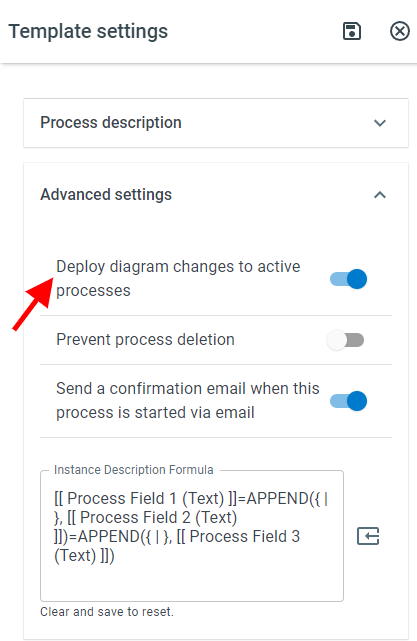
Click Settings Panel (gear icon) > Advanced Settings > Disable “Deploy diagram changes to active processes”
-
Click Save
This setting can also be disabled on individual instances.
To stop individual instances from inheriting process changes, do the following:
-
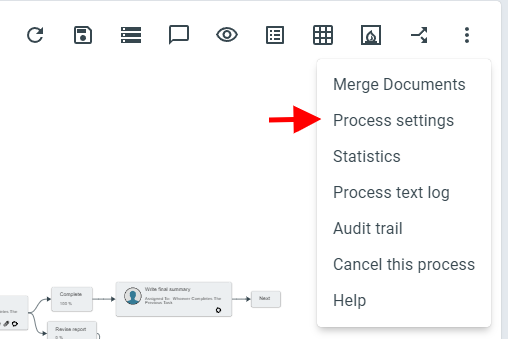
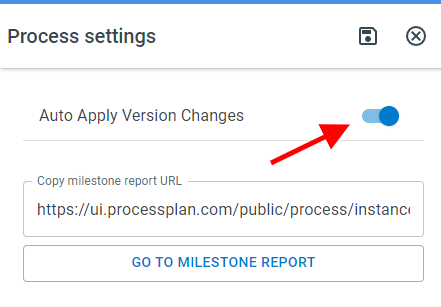
On the progress view of an active process, click the 3 dot Navigation button in the top right > Process Settings > Disable “Auto Apply Version Changes”
-
Click Save