
Introducing Automated Actions
Automated actions allow you to save time and reduce human error by automating tasks. ProcessPlan allows you to automate things like sending emails, text messages, kicking off a Zapier integration, or even completing a task in a process. Each action consists of an Action Type, Trigger, and Action. Additionally, you can add a condition to your action to take more control of when the action is launched.
You can also build one by asking. Tell the AI Strategist you want AI to handle part of a process - drafting the reply, summarizing a document, classifying a request - and it sets up an AI Agent action in the conversation: it shows you which step, what the agent will do, and where its answer gets written, then puts it live once you agree. The rest of this page covers building an action yourself.
Action Types
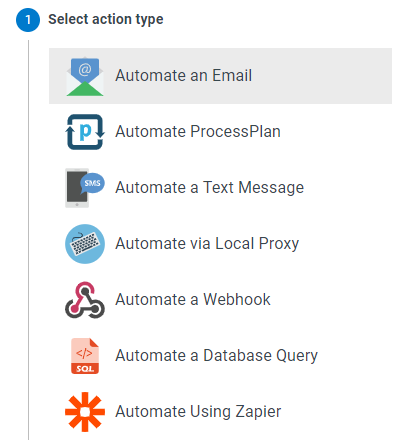
Section titled “Action Types”The Action type is where you select what you want to automate.
-
Automate an Email - Selecting this action type will allow you to automatically send an email
-
Automate ProcessPlan - Selecting this action type will allow you to automate many things within ProcessPlan, such as completing a task or updating a field value
-
Automate a Text Message - Selecting this action type will allow you to automatically send a text message
-
Automate via AI Employee - Selecting this action type will allow you to automatically launch an AI Employee job
-
Automate a Webhook - Selecting this action type allows you to automatically launch an outgoing webhook
-
Automate a Database Query - Selecting this action type allows you to automatically submit a query to a database
-
Automate Using Zapier - Automations using Zapier must be configured within Zapier
-
Post Slack Message - Selecting this action type will allow you to automatically post a message to Slack
-
AI Prompt - Selecting this action type will allow you to send a prompt to the AI, optionally with an attached file, and save its answer to a process field
-
Fully Autonomous AI Agent - Selecting this action type will allow you to hand a task to an AI agent that works it to completion on its own
-
Execute a JavaScript Function - Selecting this action type will allow you to run one of your account’s JavaScript functions and use its result
-
Automate ConnectWise - Selecting this action type will allow you to automate ConnectWise, such as creating a ticket or a time entry. This action type only appears when the ConnectWise integration is active
Triggers
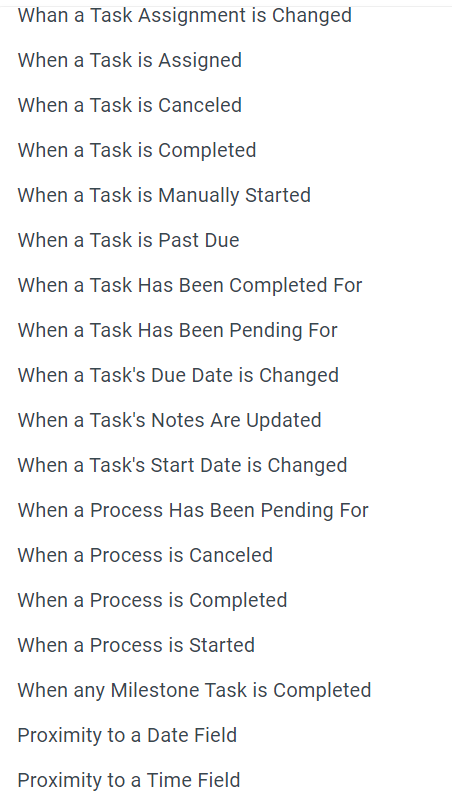
Section titled “Triggers”The event that causes the action to initiate is called a Trigger. ProcessPlan has a variety of triggers to fit different scenarios.
-
When an All Pending File Analysis is Complete - An action with this trigger will be launched when all files awaiting analysis (such as text extraction) in the process have finished processing. The action runs once, after the last pending file completes, so the analysis results are available to the action
-
When Called by Another Action - An action with this trigger will only be launched when it is called by another automated action (such as an “Execute All Selected Automated Actions” action)
-
When a Field is Updated - An action with this trigger will be launched when a specified field is updated
-
When a Field’s Existing Value is Revised - An action with this trigger will be launched when a field value is changed to a different value
-
When a New Message is Posted - An action with this trigger will be launched when a message is posted in the process template
-
When a Task Assignment is Changed - An action with this trigger will be launched when a task is assigned to another user or group
-
When a Task is Assigned - An action with this trigger will be launched when a task is assigned
-
When a Task is Canceled - An action with this trigger will be launched when a task is canceled
-
When a Task is Completed - An action with this trigger will be launched when a task is completed
-
When a Task is Manually Started - An action with this trigger will be launched when a task is manually started by a user
-
When a Task is Past Due - An action with this trigger will be launched when a task is past due
-
When a Task has been Completed For - An action with this trigger will be launched when a task has been completed for a specified amount of time
-
When a Task has been Pending For - An action with this trigger will be launched when a task has been running for a specified amount of time
-
When a Task’s Due Date is changed - An action with this trigger will be launched when a task’s due date is changed
-
When a Task’s Notes are updated - An action with this trigger will be launched when a task’s notes are updated
-
When a Task’s Start Date is Changed - An action with this trigger will be launched when a task’s start date is changed
-
When a Process Has Been Pending For - An action with this trigger will be launched when a process has been running for a specified amount of time
-
When a Process is Canceled - An action with this trigger will be launched when a process is canceled
-
When a Process is Completed - An action with this trigger will be launched when a process is completed
-
When a Process is Started - An action with this trigger will be launched when the process is started
-
When any Milestone Task is Completed - An action with this trigger will be launched whenever a task that has a milestone description is completed
-
Proximity to a Date Field - An action with this trigger will be launched a certain period of time before or after a date specified in a date field.
-
Proximity to a Time Field - An action with this trigger will be launched a certain period of time before or after a time specified in a time field.
-
Proximity to a Task’s Due Date - An action with this trigger will be launched a certain number of days before or after a task’s Due Date
-
Proximity to a Task’s Start Date - An action with this trigger will be launched a certain amount of time before or after a task’s Start Date
For all four proximity triggers, the number next to Trigger sets the direction. A negative number runs the action before the date, and a positive number runs it after. For example, -1 day(s) relative to a Start Date of March 10 runs the action on March 9, and 2 day(s) runs it on March 12. The form spells out the result under the setting, such as “Runs 1 day(s) before Start Date.” If that moment falls on a day that is not checked under Only on, or outside the chosen hours, the action waits and runs at the next allowed time.
-
When a Public Form is submitted - An action with this trigger will be launched when a specified public form is submitted
-
When a Merge Document is Submitted - An action with this trigger will be launched when a specified merge document is submitted. To launch it whenever any merge document is submitted on the process, choose Apply to all documents instead of a single document.
-
When an Incoming Email is Received - An action with this trigger will be launched when an email is received within this process’ messages. Set the “Reply to” on your automated action emails to “The current process’ messages” to send replies to a process.
-
When an Automated Action Succeeds - An action with this trigger will be launched when a specified automated action runs successfully
-
When an Automated Action Fails - An action with this trigger will be launched when a specified automated action fails
-
On a Schedule - An action with this trigger will be launched according to a predefined schedule (e.g., hourly, weekly, monthly)
The timed triggers (the “Pending For” and “Completed For” triggers, the proximity triggers and On a Schedule) run only on the days checked under Only on. A new action starts with all seven days checked. Uncheck a day to keep the action from running on it. For example, uncheck Saturday and Sunday, and a task that starts waiting on Saturday is handled on Monday.
The “Pending For”, “Completed For” and proximity triggers also run only between their Starting at and Ending at times. A new action runs all day, from 12:00 AM to 11:45 PM. An Ending at of 11:45 PM runs right up to midnight. Narrow the times to keep the action to working hours. For example, with 8:00 AM to 5:00 PM, a task that starts waiting at 6:00 PM is handled at 8:00 the next morning. An On a Schedule action starts at 8:00 AM, because its Starting at is the time it runs.
Conditions
Section titled “Conditions”Conditions allow flexibility for launching automated actions. If an action has condition(s), the action will not be launched unless the conditions are met.
Only Run on Processes Started on or After sits at the top of every action’s Conditions step. A process started before this date skips the action, even when its conditions are met, and even when someone clicks an Automated Action Button for the action. The All or Any choice doesn’t change this: it only decides how the conditions listed under it combine.
The date starts out empty, so a new action runs on every process, including the ones that were already running when you added it. To leave older processes alone, pick a date, or click Today in the date picker. For example, give a new action that sends a reminder when a task has been waiting two days today’s date, and it won’t send one for every task that was already waiting. Clear the date to run the action on every process again. An On a Schedule action with no date runs only on processes started since the action was created.
Condition descriptions are listed below.
-
Evaluate Formula - This condition will be met if the formula in the condition evaluates as true (1, true, t, or any number greater than 0)
-
Field Contains - This condition will be met if a specified field contains a certain value
-
Field Does Not Contain - This condition will be met if a specified field does not contain a certain value
-
Field is Empty - This condition will be met if a specified field has no value
-
Field is Not Empty - This condition will be met if a specified field has a value
-
Field Equals - This condition will be met if the value in a field equals a specified value
-
Field Is Not Equal - This condition will be met if the value in a field is not equal to a specified value
-
Field Has Sentiment - This condition will be met if AI sentiment analysis of the text in a specified field detects the sentiment selected in the condition
-
Field is Greater Than or Equal To - This condition will be met if the value in a field is greater than or equal to a specified value
-
Field is Less Than or Equal To - This condition will be met if the value in a field is less than or equal to a specified value
-
Field Selected User in Group - This condition will be met if a user selected in a process field is a member of the specified group
-
Field Selected User not in Group - This condition will be met if a user selected in a process field is not a member of the specified group
-
Random Sample - This condition will be met at random, approximately the percentage of the time entered in the condition (0-100)
-
Current Hour Equals - This condition will be met if the hour in which the action is launched matches the specified hour. The hour should be entered in 24-hour format
-
Current Month Day Equals - This condition will be met if the day on which the action is launched matches the day specified in the action
-
Current Month Equals - This condition will be met if the month in which the action is launched matches the month specified in the action
-
Current User Company Contains - This condition will be met if the user who is logged in at the time the action is launched matches the company listed in the description. User company is defined on the user profile
-
Current User Department Contains - This condition will be met if the user who is logged in at the time the action is launched has a department that matches the department listed in the description. User department is defined on the user profile
-
Current User Equals - This condition will be met if the user that is logged in when the action is launched matches the user specified in the condition
-
Current User in Group - This condition will be met if the user that is logged in when the action is launched is a member of the specified user group
-
Current User not in Group - This condition will be met if the user that is logged in when the action is launched is not a member of the specified user group
-
Current User not Equal To - This condition will be met if the user that is logged in when the action is launched does not match the user specified in the condition
-
Current User Position Contains - This condition will be met if the user who is logged in at the time the action is launched has a position that matches the position listed in the description. User position is defined on the user profile
-
Current User Supervisor Equals - This condition will be met if the user who is logged in at the time the action is launched has a supervisor that matches the supervisor listed in the description. User supervisor is defined on the user profile
-
Current User Time Zone Equals - This condition will be met if the user who is logged in at the time the action is launched has a Time Zone that matches the Time Zone listed in the description. User Time Zone is defined on the user profile
-
Current Weekday Number Equals - This condition will be met if the day on which the action is launched matches the weekday number listed in the condition. Weekday numbers start at 1 (1 = Sunday, 2 = Monday, and so on)
-
Process Started by User - This condition will be met if the process is started by the user specified in the condition
-
Process Not Started by User - This condition will be met if the process is not started by the user specified in the condition
-
Process Greater than X Minutes Old - This condition will be met if the process has been running longer than the time specified in the condition
-
Process Less Than X Minutes Old - This condition will be met if the process has not been running longer than the time specified in the condition
-
Process Instance Exists - This condition will be met if a process in the chosen process table matches the condition’s search. Field tokens in the search are filled in when the action runs. If a filled-in value is empty, or contains an
&, a?, a semicolon (;),[or], or the wordORwith spaces around it (as a field holding several values does), the search cannot run as written, so the condition cannot be checked. Unless the action’s other conditions settle the outcome without it, the action then does not run at all, so a task it would have completed stays open, and the process’s history says why -
Process Instance Does Not Exist - This condition will be met if no process in the chosen process table matches the condition’s search. A search that cannot run as written is handled the same way as above: the action does not run
-
Task Response Contains - This condition will be met if the task response contains text that matches the text in the condition
-
Task Response Does Not Contain - This condition will be met if the task response does not contain text that matches the text in the condition
-
Task Assigned To Group - This condition will be met if the task is assigned to a specified user group
-
Task Not Assigned To User Group - This condition will be met if the task is not assigned to a specified user group
-
Task Assigned To User - This condition will be met if the task is assigned to a specified user
-
Task Not Assigned To User - This condition will be met if the task is not assigned to a specified user
-
Task Is Completed - This condition will be met if a specified task is completed when the action is launched
-
Task Completed By User - This condition will be met if the task is completed by a specified user
-
Task Not Completed By User - This condition will be met if the task is not completed by a specified user
-
Task Not Completed - This condition will be met if a specified task has not been completed when the action is launched
-
Task Is Pending - This condition will be met if a specified task is still pending when the action is launched
-
Task Not Pending - This condition will be met if a specified task is not pending when the action is launched
-
Task Pending For X Minutes - This condition will be met if a specified task has been pending for a specified number of minutes
-
Task Not Pending For X Minutes - This condition will be met if a specified task has not been pending for a specified number of minutes
-
Task Response Equals - This condition will be met if a specified task response matches the response in the condition
-
Task Response Not Equals - This condition will be met if a specified task response does not match the response in the condition
-
Task Response Count Less Than - This condition will be met if the number of times a specified task has been completed with a specified response is less than the number in the condition
-
Task Response Count Not Less Than - This condition will be met if the number of times a specified task has been completed with a specified response is not less than the number in the condition
-
Previous Task Response Contains - This condition will be met if the previous task response contains the response in the condition
-
Previous Task Response Does Not Contain - This condition will be met if the previous task response does not contain the response in the condition
-
Specific Task Checklist Contains - This condition will be met if a specified value is selected in a specified task checklist
-
Specific Task Checklist Does not Contain - This condition will be met if a specified value is not selected in a specified task checklist
Action
Section titled “Action”Each Action Type has its own set of actions that can be configured.