
=PARSE
The PARSE function extracts values from a text string based on defined left and right boundaries within a search string.
Syntax
Section titled “Syntax”=PARSE(GetRightOfThisText; GetLeftOfThisText; SearchWithinThisText)Parameters
Section titled “Parameters”GetRightOfThisText – The function returns everything to the right of this text.
GetLeftOfThisText – The function returns everything to the left of this text.
SearchWithinThisText – The full text string that the function will search through.
How It Works
Section titled “How It Works”-
Searches within the provided text string.
-
Locates the defined left and right boundary markers.
-
Extracts the text located between those boundaries.
-
Returns the resulting substring.
Usage Notes
Section titled “Usage Notes”-
Formula functions are case sensitive and must be written in ALL CAPS.
-
Can search for hidden or special characters:
-
crlf = carriage return/line feed (hard return)
-
tab = tab character
-
-
Useful for extracting specific values from structured text fields.
-
Both boundary parameters are required, but either can be left blank depending on extraction needs.
-
Ensure correct ordering of parameters for accurate results.
How to Use
Section titled “How to Use”-
Enter the function in the format shown in Syntax.
-
Provide the correct boundary text values.
-
Click Save to apply the formula.
Example
Section titled “Example”=PARSE(Invoice: ; ; Invoice: 12345 - Paid)Returns
Section titled “Returns”12345 - Paid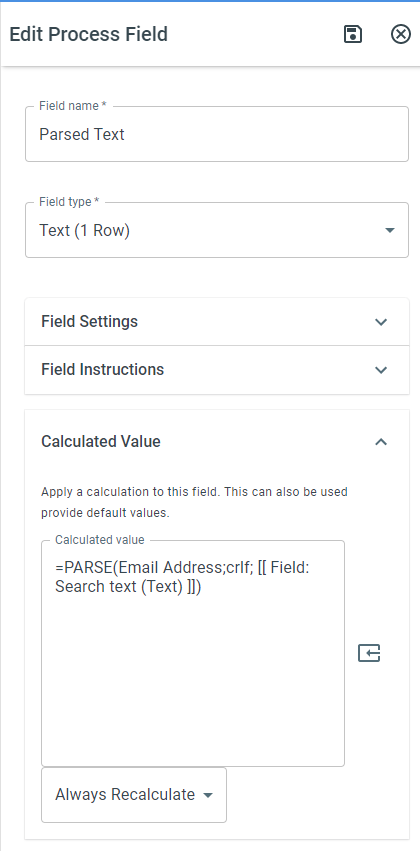
Keywords
Section titled “Keywords”PARSE, text extraction, substring, extract between text, left right delimiters, crlf, tab character, workflow formulas, formula function