
Creating a New Process Template
To create a new Process Template, do the following:
- Click Administration > Processes > Template Diagrams > New Process Template
You will be presented with a sample process template. You can run the process as is, modify the existing template, or remove the template and start from scratch.
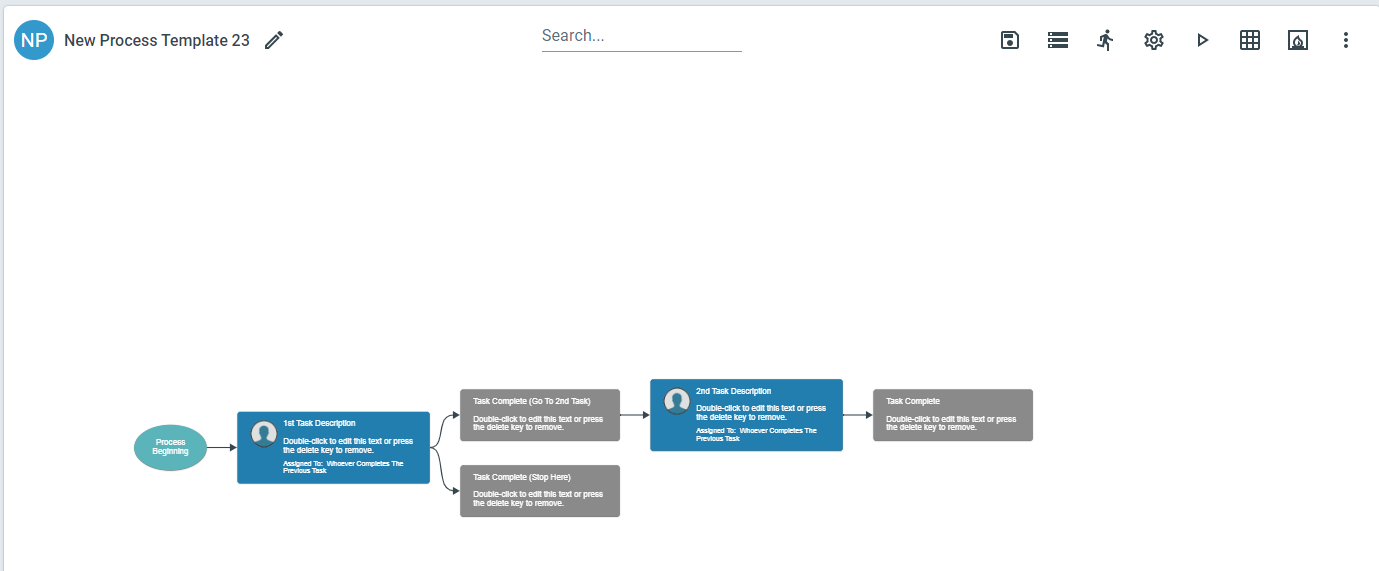
To name your new process:
-
Click the pencil icon in the left corner
-
You can add an icon to your process by clicking the circle to the left of the template name. Icons help you identify templates
Drawing the Template
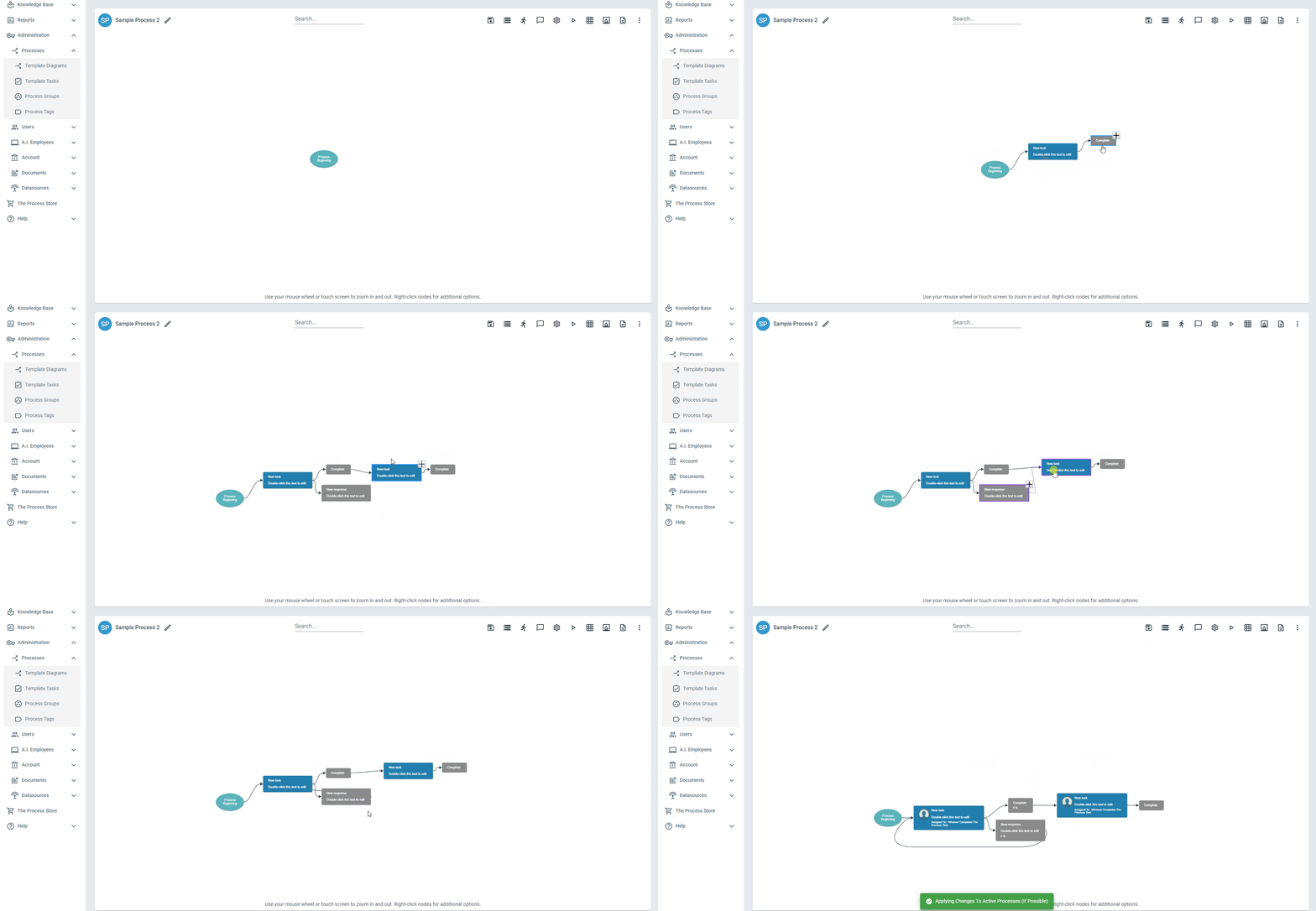
Section titled “Drawing the Template”Process Templates are made up of Tasks (Blue nodes) and Responses (Gray nodes). You can use point and click mechanics to map out your processes. A Task can have multiple responses and a response can trigger multiple tasks.
To add a task to a template, do the following:
-
Click on the Process Beginning oval or any Response and click the ”+” button that appears at the edge of the node
-
To edit the text on the node, double-click anywhere on the New Task node
To add a response to a task, do the following:
-
Click on the Task and click the ”+” button that appears at the edge of the node
-
To edit the text on the node, double-click anywhere on the node
You can draw a path from one response to an existing task. To do this, do the following:
-
Right click on a response and select Connect to a Task
-
Click the task you want to draw the path to
-
This same technique can be used to loop back to a task in the diagram
-
You can also hover over a node and drag from one of its connection points (the dots on its sides) to another node to draw the path
To delete a task, response, or connecting line, do the following:
-
Click the element you want to remove from the diagram > press Delete on your keyboard
-
Click the Save icon in the template design menu to save your changes
To select multiple tasks or responses, click one task/response you want to select, then hold Ctrl (or Cmd on Mac) on your keyboard and click the other tasks/responses you want to select.
Tasks and responses can also be copied and pasted. To do this, do the following:
-
Click on the task or response you want to copy. To select more than one task or response hold Ctrl (or Cmd on Mac) while you click
-
To copy, press Ctrl/Cmd+C
-
To paste, press Ctrl/Cmd + V
-
Connect the newly pasted pieces as you see fit
Be sure to save your diagram by clicking the Save icon in the menu. To tidy up the layout at any time, right-click an empty area of the canvas and select Auto Format Diagram.