
Via Public Form
To start a process via public form, do the following:
-
Log in to your account
-
Click Administration > Processes > Template Diagrams > The card of the process you want to start
-
Click Start Process > Via public form.
-
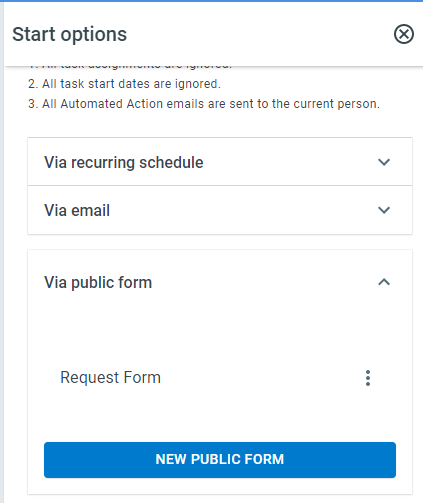
If a form has been created, the name of the form will appear. Click the name of the form to open it. The form link can be copied and shared or linked on a webpage, etc.
-
To create a new form, click New Public Form
When creating a new public form, you’ll need to give the public form a name.
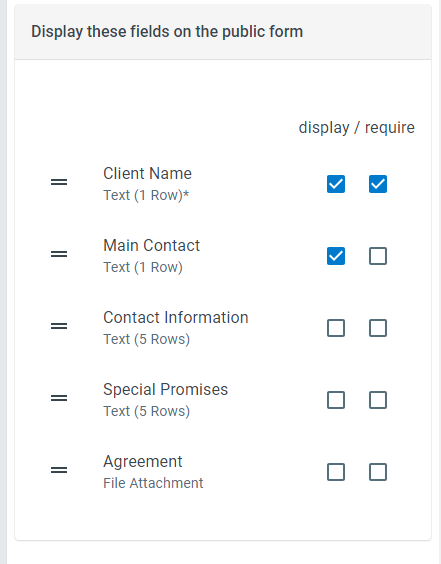
Then, you will need to choose which process fields you want to display on the new public form. (The Process Fields will need to have already been created within the process.) Your process may have 30 or more fields, but you may only want to display 10 of them on the public form. You can also, optionally, decide if the fields should be required on the public form. If the field’s “required” checkbox cannot be unchecked, it is because the field is required at the process level and is therefore always required.
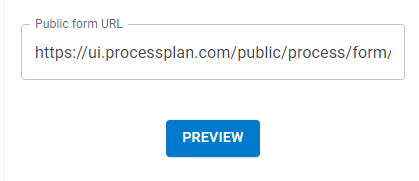
Once your public form has been saved at least once, the system will generate a unique unchanging URL for this public form. You can share or post this public form URL anywhere when you want to give people the ability to start a process without having a login to your account.
What a submission saves
Section titled “What a submission saves”A submission saves only the fields the form shows. Nothing sent to the form’s link for any other field is kept, so a field you leave off the form can’t be filled in through it. A submission that leaves a required field empty is refused, and nothing is started or updated until it is filled in.
Collecting a signature
Section titled “Collecting a signature”To have the person filling in the form sign it, show a Digital eSignature field on the form. They type their name in that field to sign. If you make the field required, the form won’t submit until they sign.
A signature made on a public form appears, with its SIG code, on every Merge Document of that process that has a signature block for the field. Once a signature is made, the form shows it but can’t change or clear it.
A form takes a signature only in the signature fields it shows. For example, a tenant’s form that shows only the tenant’s signature leaves the landlord’s signature field unsigned.
Personalizing what the form says
Section titled “Personalizing what the form says”Both Instructions and Success Message or Redirect URL accept Field Tokens. Insert them with the Import Field Tokens icon next to the box, the same way you would anywhere else, and the person filling in the form sees real values rather than token text. A token with nothing to fill in is simply left blank.
Instructions appear above the fields, so tokens there are at their most useful on a form that updates a process already running (see the note at the end of this page). The form knows which process it belongs to, so it can open with what you already have on file:
We have your delivery address as Field: Address (Text). Change anything below that is out of date.
On a form that starts something new there is nothing to look up yet, so tokens are left blank until the person has submitted.
Success Message or Redirect URL is what they are shown once they have submitted. Type a message and they see it on a confirmation page. Paste a URL that starts with http instead and they are sent straight to that page. Tokens here are filled in from the process that was just started or updated, so you can confirm back what somebody entered, or hand them a reference to quote later:
Thanks Field: Contact Name (Text), we have your request. Your reference is Process Instance ID.
Note: You can also use public forms to collect information from people in the middle of an existing process that is already running. For instance, halfway through a new customer onboarding process, you can use an Automated Action to send an email which contains a link to a public form. When an Automated Action sends a Public Form link, that Public Form will always update the process instance from which it originated. (It will not start a new process.)