Assigning a Task to a User in a Process Field
Assigning tasks to a user selected in a process field allows for greater flexibility within your processes.
To set up Process field task assignments, do the following:
-
Open the process template you want to edit (Administration > Processes > Template Diagrams > Click the card of the process you want to edit)
-
On the process template, add either a User List or User List (All) Process Field. This is where you will select the user that the task(s) will be assigned to
-
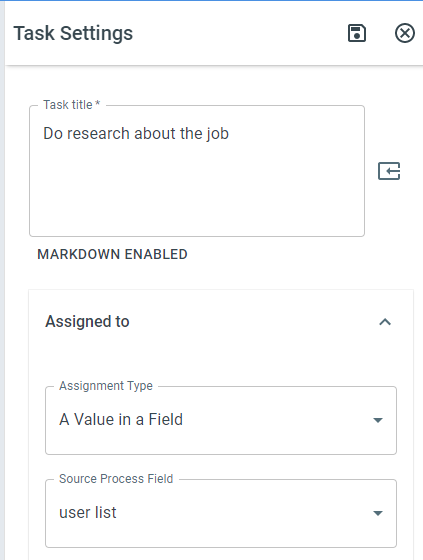
On the task(s) that you want to assign to the user in the process field, right-click on the task > Task Settings > Assigned To > A Value in a Field. Select your User List field
Changing Task Assignment
Section titled “Changing Task Assignment”To change who a task is assigned to in ProcessPlan, do the following:
-
On the task you want to assign, right-click and select Task Settings
-
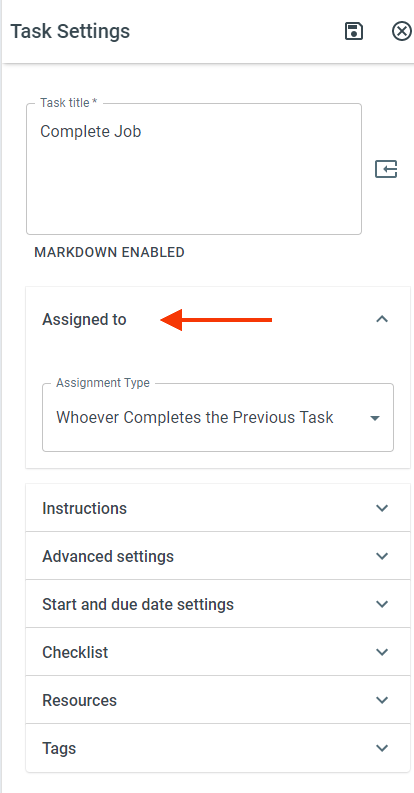
On the panel that flies out, click Assigned To
-
Select an Assignment Type. If necessary, complete the additional fields in assignment type
-
Click Save on the top of the panel
Reassigning a Live Task
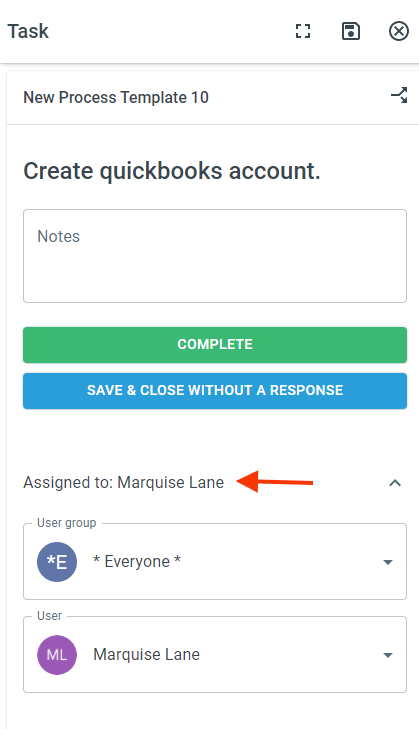
Section titled “Reassigning a Live Task”To reassign a task that is on your task list, do the following:
-
Click the task you want to reassign
-
On the panel that pops out, click Assigned to
-
Select the User Group and User
-
Click the Save icon at the top of the panel