Bulk Operations
ProcessPlan gives you the ability to perform some actions in bulk, saving you time and improving efficiency.
Completing Tasks in Bulk
Section titled “Completing Tasks in Bulk”Tasks with one response can be completed in bulk. To do this, do the following:
-
Log in to your account
-
On the My Tasks, In Progress Tasks, or Past Due Tasks screens, click the checkbox to the left of the tasks you wish to complete > In the Bulk Edit panel, expand Action Command > Select Complete Pending Tasks > Click Update All Selected Rows
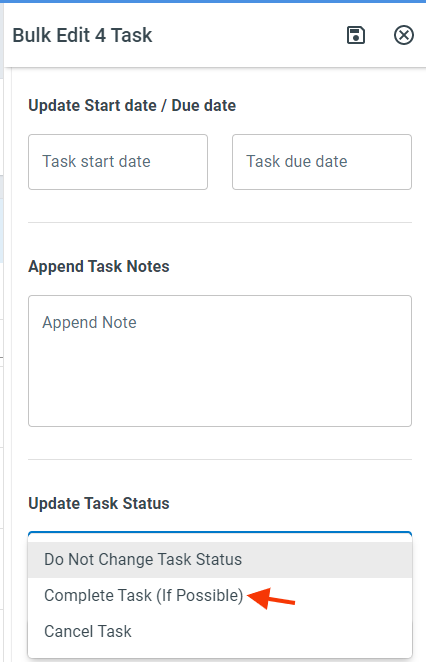
Heads Up: Tasks can only be completed in bulk if they have one possible response
Canceling Tasks in Bulk
Section titled “Canceling Tasks in Bulk”To cancel multiple tasks at once, do the following:
-
Log in to your account
-
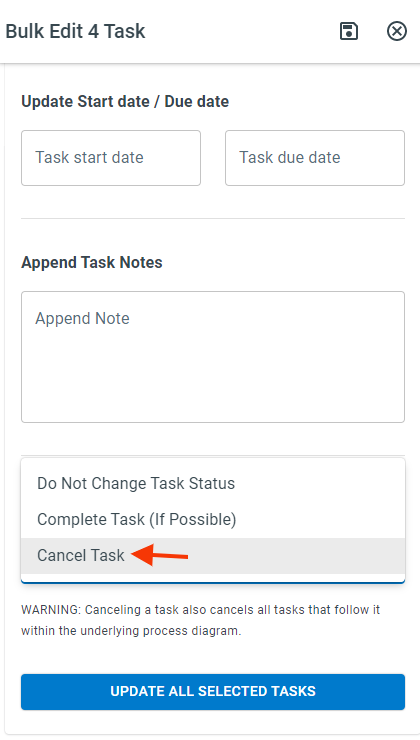
On the My Tasks, In Progress Tasks, or Past Due Tasks screens, click the checkbox to the left of the tasks you wish to cancel > In the Bulk Edit panel, expand Action Command > Select Cancel Selected Tasks > Click Update All Selected Rows
Reassigning Tasks in Bulk
Section titled “Reassigning Tasks in Bulk”To Reassign multiple tasks at once, do the following:
-
Log in to your account
-
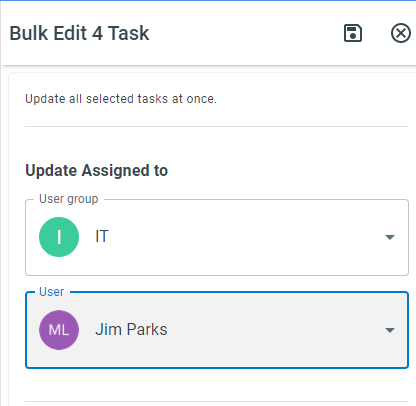
On the My Tasks, In Progress Tasks, or Past Due Tasks screens, click the checkbox to the left of the tasks you wish to reassign > In the Bulk Edit panel, expand Task Assigned To > Select the group and user you want to reassign the tasks to > Click Update All Selected Rows
Updating Process Fields in Bulk
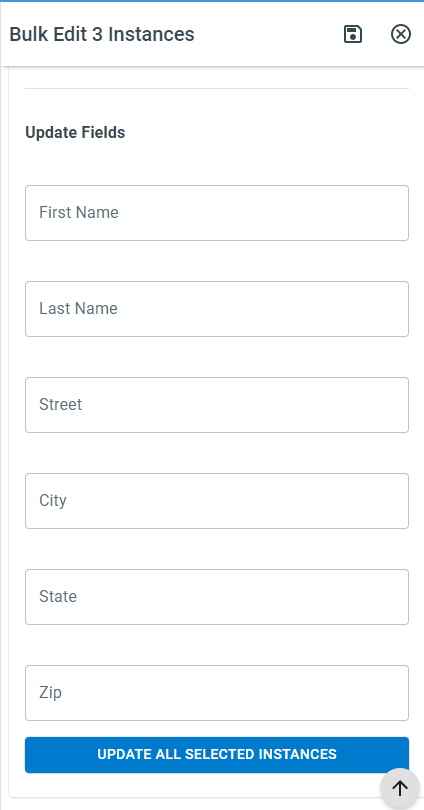
Section titled “Updating Process Fields in Bulk”To update a process field in multiple instances, do the following:
-
Log in to your account
-
Click Reports > Process Tables > Click the process table you want to edit
-
Click the checkbox to the left of the instances you want to edit > In the Process Fields section of the Bulk Edit panel, enter the field values you want to apply to the instances > Click Update All Selected Rows
A read only field keeps the value it already has. A bulk edit fills it in only on the instances where it is still empty.
Changing Start/Due Dates in Bulk
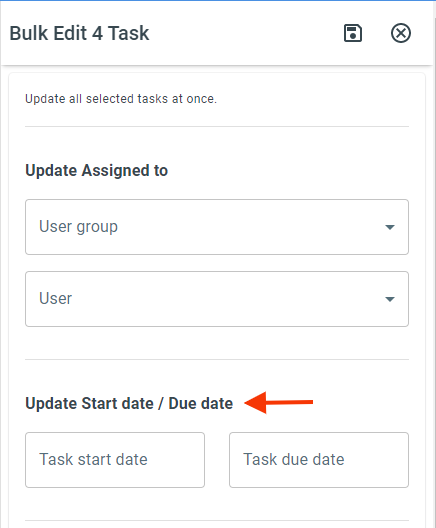
Section titled “Changing Start/Due Dates in Bulk”To change the start/due date of multiple tasks, do the following:
-
Log in to your account
-
On the My Tasks, In Progress Tasks, or Past Due Tasks screens, click the checkbox to the left of the tasks you wish to edit > In the Bulk Edit panel, expand the Task Start Date / Due Date section and enter your desired dates > Click Update All Selected Rows
Appending Task Notes in Bulk
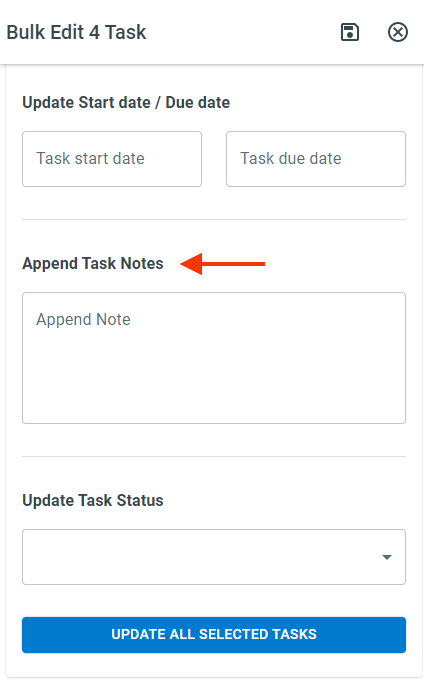
Section titled “Appending Task Notes in Bulk”-
Log in to your account
-
On the In Progress, Past Due, and Scheduled Process reports or the Process Table, click the checkbox to the left of the process you want to add a note to > In the Bulk Edit panel, expand the Append Task Notes section and enter your Task Note > Click Update All Selected Rows
Canceling Processes in Bulk
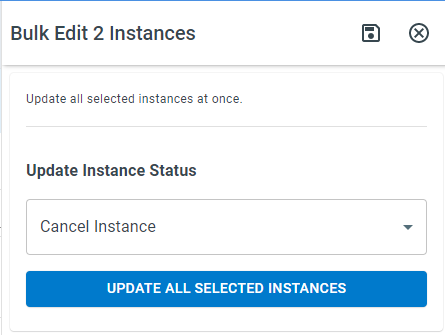
Section titled “Canceling Processes in Bulk”To cancel processes in bulk, do the following:
-
Log in to your account
-
On the In Progress, Past Due, and Scheduled Process reports or the Process Table, click the checkbox to the left of the process you want to cancel > In the Bulk Edit panel, expand Action Command > Select Cancel Selected Processes > Click Update All Selected Rows
Appending Instance Visibility in Bulk
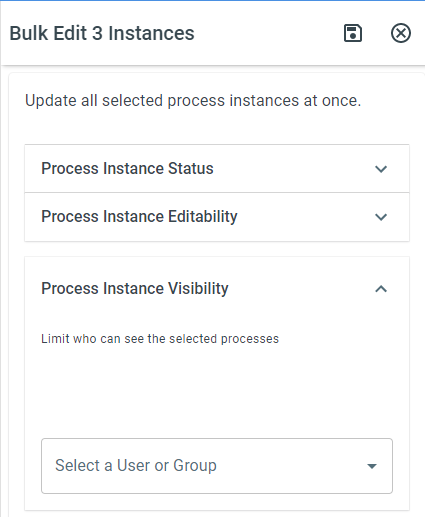
Section titled “Appending Instance Visibility in Bulk”To add users to the visibility list of multiple instances, do the following:
-
Log in to your account
-
Click Reports > Process Tables > Click the process table you want to access
-
Click the checkbox to the left of the instances you want to edit > In the Bulk Edit panel, expand Process Visibility > Select the users or groups you want to add to the visibility list
-
Click Update All Selected Rows
Appending Instance Editability
Section titled “Appending Instance Editability”To add users to the editability list of multiple instances, do the following:
-
Log in to your account
-
Click Reports > Process Tables > Click the process table you want to access
-
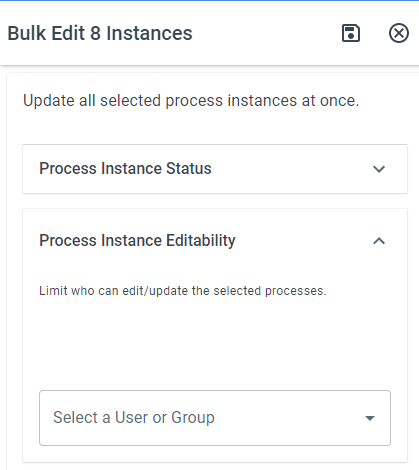
Click the checkbox to the left of the instances you want to edit > In the Bulk Edit panel, expand Process Editability > Select the users or groups you want to add to the editability list
-
Click Update All Selected Rows