
=LTEDATE (Less Than or Equal To Date)
The LTEDATE function compares two date values and returns a Boolean result. It returns 1 (true) if the first date is less than or equal to the second date. It returns 0 (false) if the first date is after the second date.
Syntax
Section titled “Syntax”=LTEDATE(TheDateYouAreChecking; TheDateYouAreComparingItTo)Parameters
Section titled “Parameters”-
TheDateYouAreChecking – The date value or field token you want to evaluate.
-
TheDateYouAreComparingItTo – The date value or field token to compare against.
How It Works
Section titled “How It Works”-
Evaluates the first date provided.
-
Compares it to the second date.
-
Returns 1 (true) if the first date occurs before or on the comparison date.
-
Returns 0 (false) if the first date occurs after the comparison date.
Usage Notes
Section titled “Usage Notes”-
Formula functions are case sensitive and must be written in ALL CAPS.
-
Date values must be in a valid date format recognized by the system.
-
Field tokens can be used to make the comparison dynamic within a workflow or process.
-
Commonly used for deadlines, due dates, expiration checks, and time-based conditions.
Example
Section titled “Example”=LTEDATE(01/15/2024; 01/31/2024)- Returns 1 (true) because January 15, 2024 is before January 31, 2024.
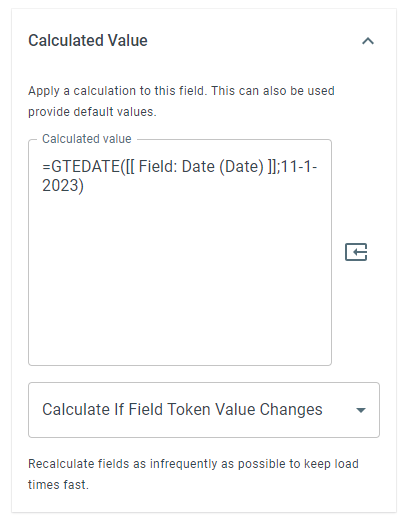
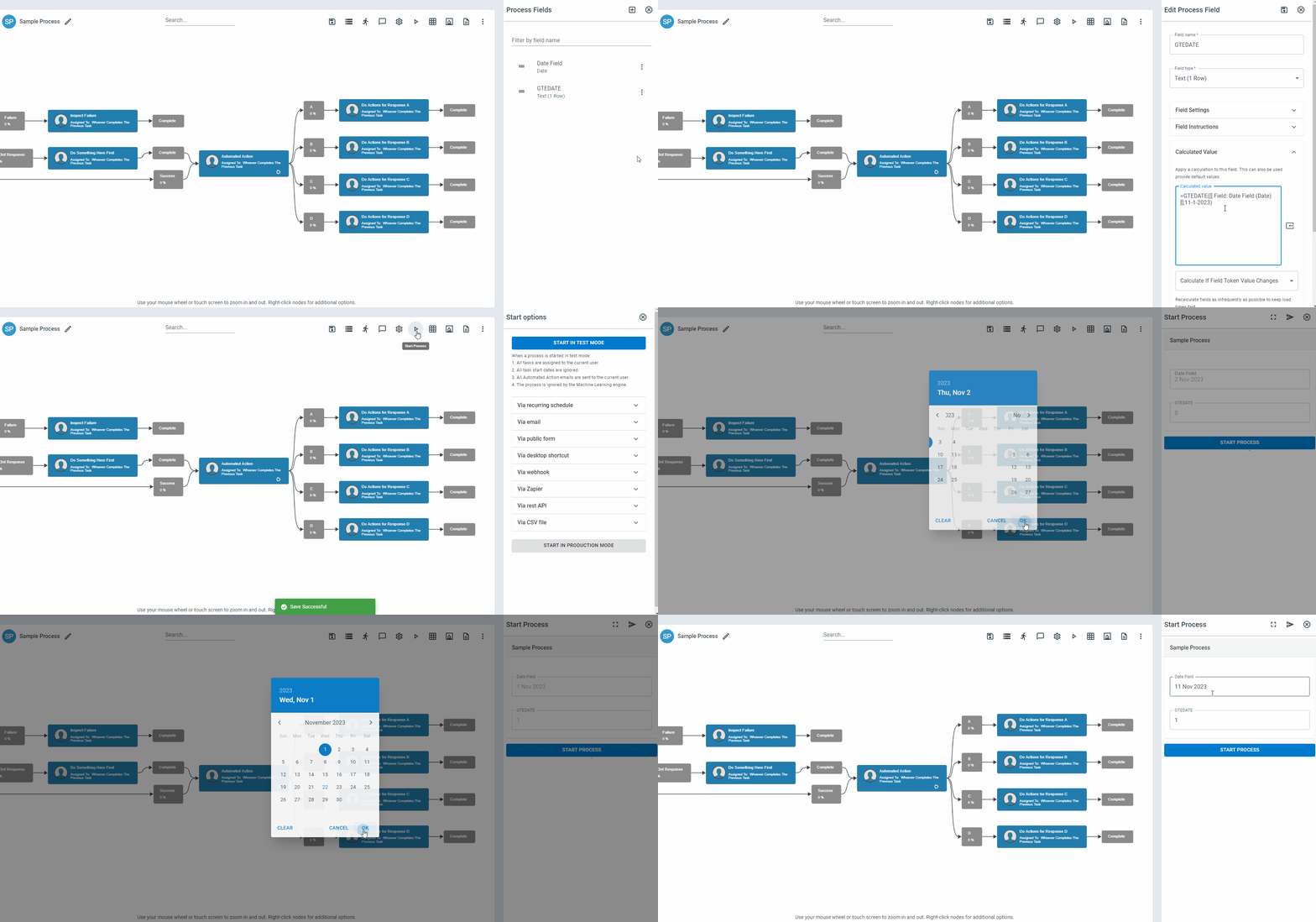
Example: Click To Enlarge
Keywords
Section titled “Keywords”LTEDATE, less than or equal date, date comparison, conditional logic, workflow formulas, date validation, Boolean function, formula function