Closing a Task with an Automated Action
To close a task in ProcessPlan with an Automated Action, do the following:
-
Log in to your account
-
Click Administration > Processes > Template Diagrams > Click the card of the process you want to edit
-
Once the template is open, click the Automated Action button > Create New
-
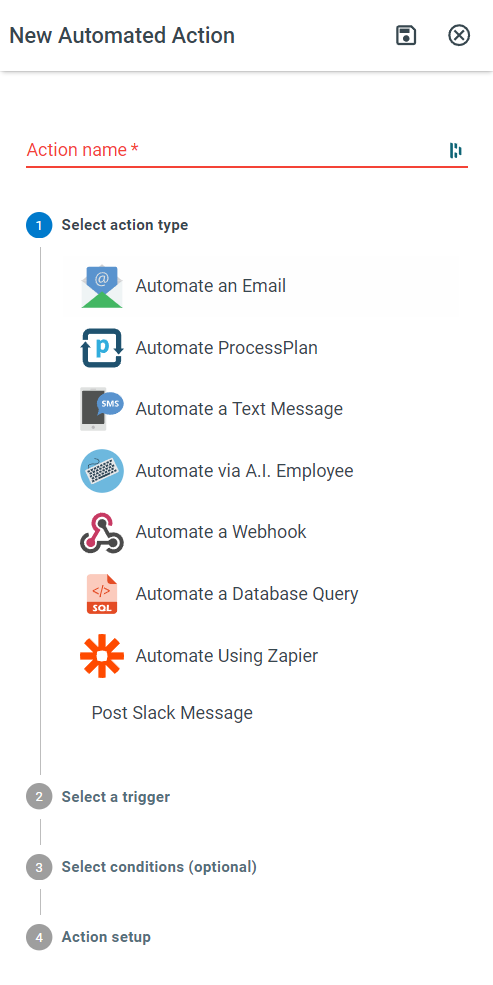
Give your action a name
-
Click Automate ProcessPlan
-
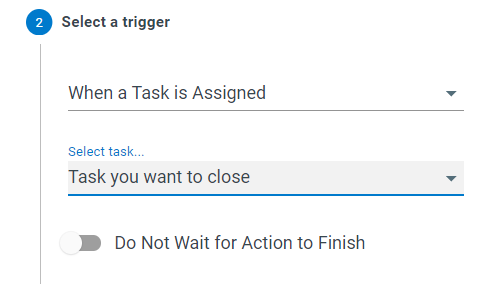
Select When a Task is Assigned as your Trigger > in the Select a task field, select the Task you want to close
-
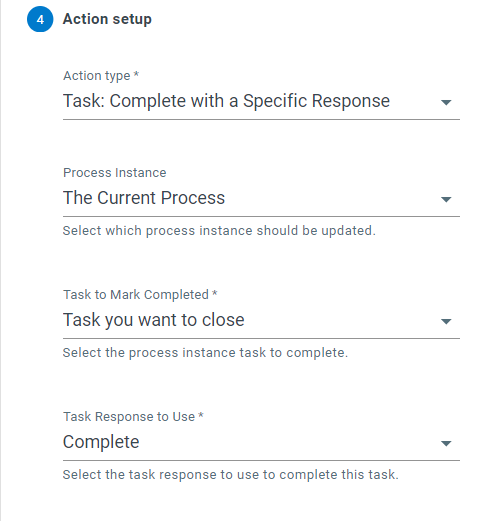
In the Action setup section, select Task: Complete with a Specific Response as your action
-
In the Process Instance section, select The Current Process
-
In the Task to Mark Completed section, select the same task you selected in your Trigger step
-
Select the task response you want to use.
-
Click the Save icon at the top of the panel