
Viewing Your Tasks
The My Tasks screen shows you all of the tasks currently assigned to you in ProcessPlan. From the My Tasks screen you can see tasks due today, tasks due this week, tasks you’ve completed, and the time you’ve spent on tasks. The My Tasks screen updates in real time, so users always have an accurate view of what needs to be done.
To view your tasks, do the following:
-
Log in to your account - the My Tasks screen is your landing page
-
If you’ve navigated elsewhere, click My Tasks in the left-hand navigation menu to return
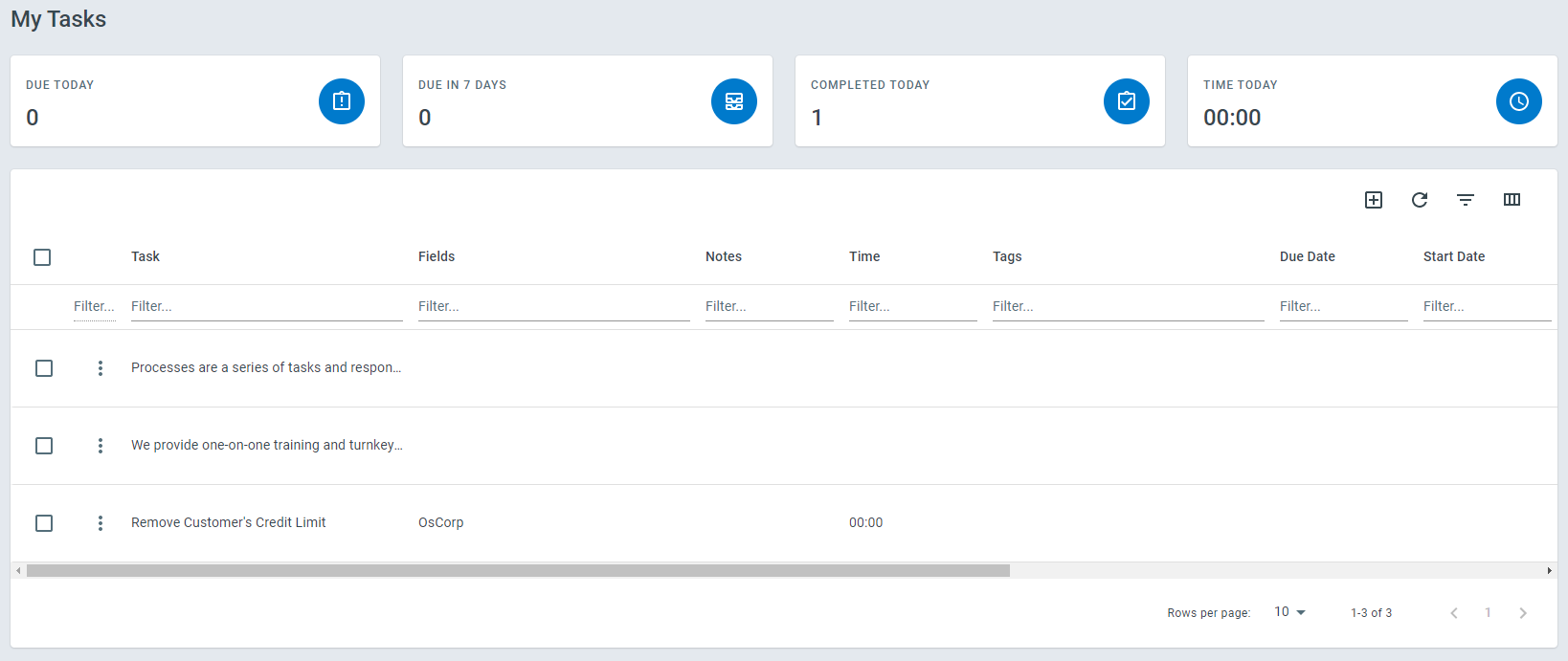
Any task can be found by typing search terms into the Filter fields below the column names on the My Tasks screen.
To change the type of tasks displayed on your My Tasks screen (Due Today, Due in 7 Days, Completed, and Time Today), do the following:
- Click the tile that corresponds with the tasks you want to see.

Additional Actions & Navigation
Section titled “Additional Actions & Navigation”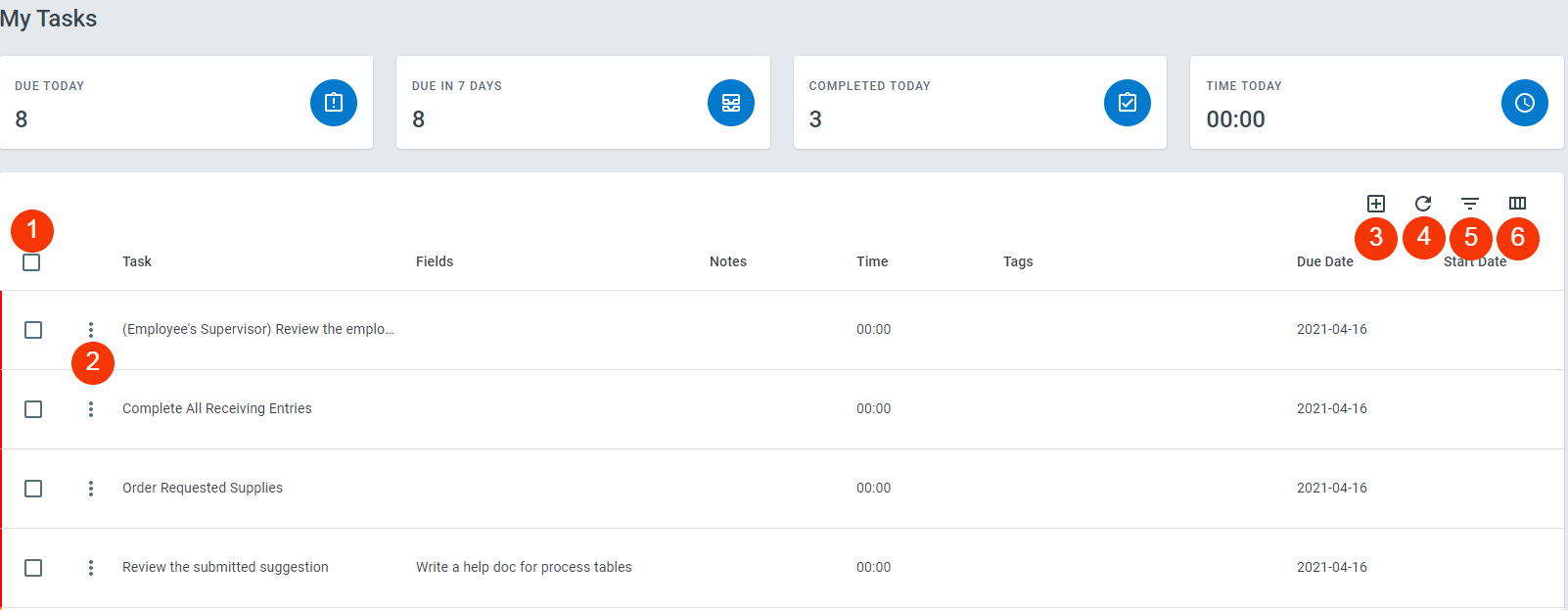
-
Checkbox - Clicking this icon allows you to select this task. Once selected, an action can be performed on it.
-
Navigation button - Clicking this icon will bring up the Open Preview, Open Full Screen, Process Diagram, Calendar, Heat Map, Process Table, and Complete options for this task.
-
Refresh button - Clicking this icon will refresh the page.
-
Filter button - Clicking this icon will toggle the search filters for all columns on the Task screen.
-
Column button - Clicking this icon will allow you to control what columns are displayed on the My Tasks screen.