
Process Fields
Process fields are used to capture and carry information in your Processes. There are various field types to fit your needs.
Adding a Process Field to your Process
Section titled “Adding a Process Field to your Process”To add a process field, do the following:
-
Open the desired template by clicking Administration > Processes > Template Diagrams > The card of the process you want to edit
-
Click the Process field icon in the menu in the top right > New Process Field
-
Give your field a name and select a field type
-
Click the Save icon at the top of the panel
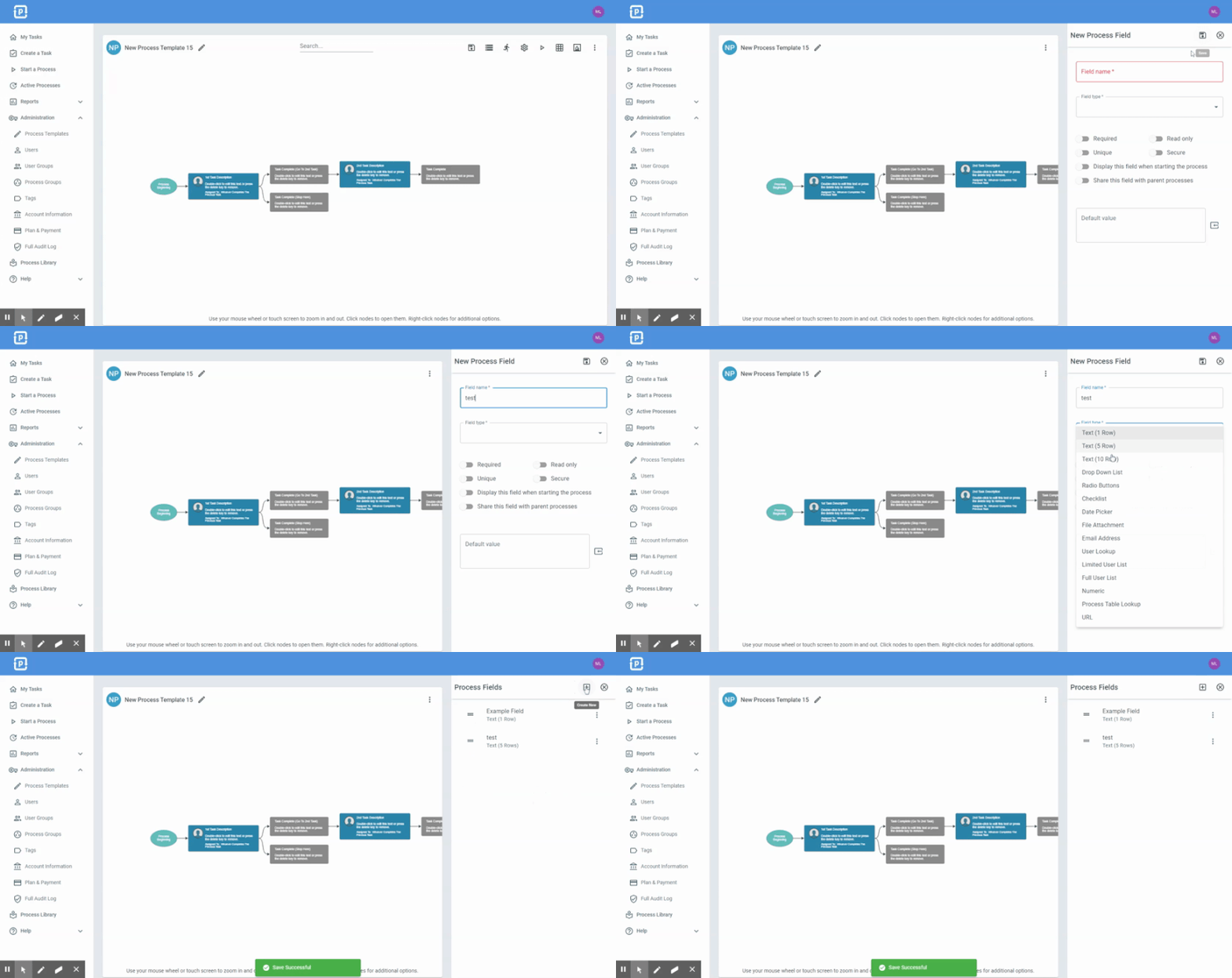
Editing a Process Field
Section titled “Editing a Process Field”-
Open the desired template by clicking Administration > Processes > Template Diagrams > The card of the process you want to edit
-
Click the Process field icon in the menu in the top right > 3 dot button to the right of the field you want to edit > Edit
-
Make desired changes and click the Save icon at the top of the panel
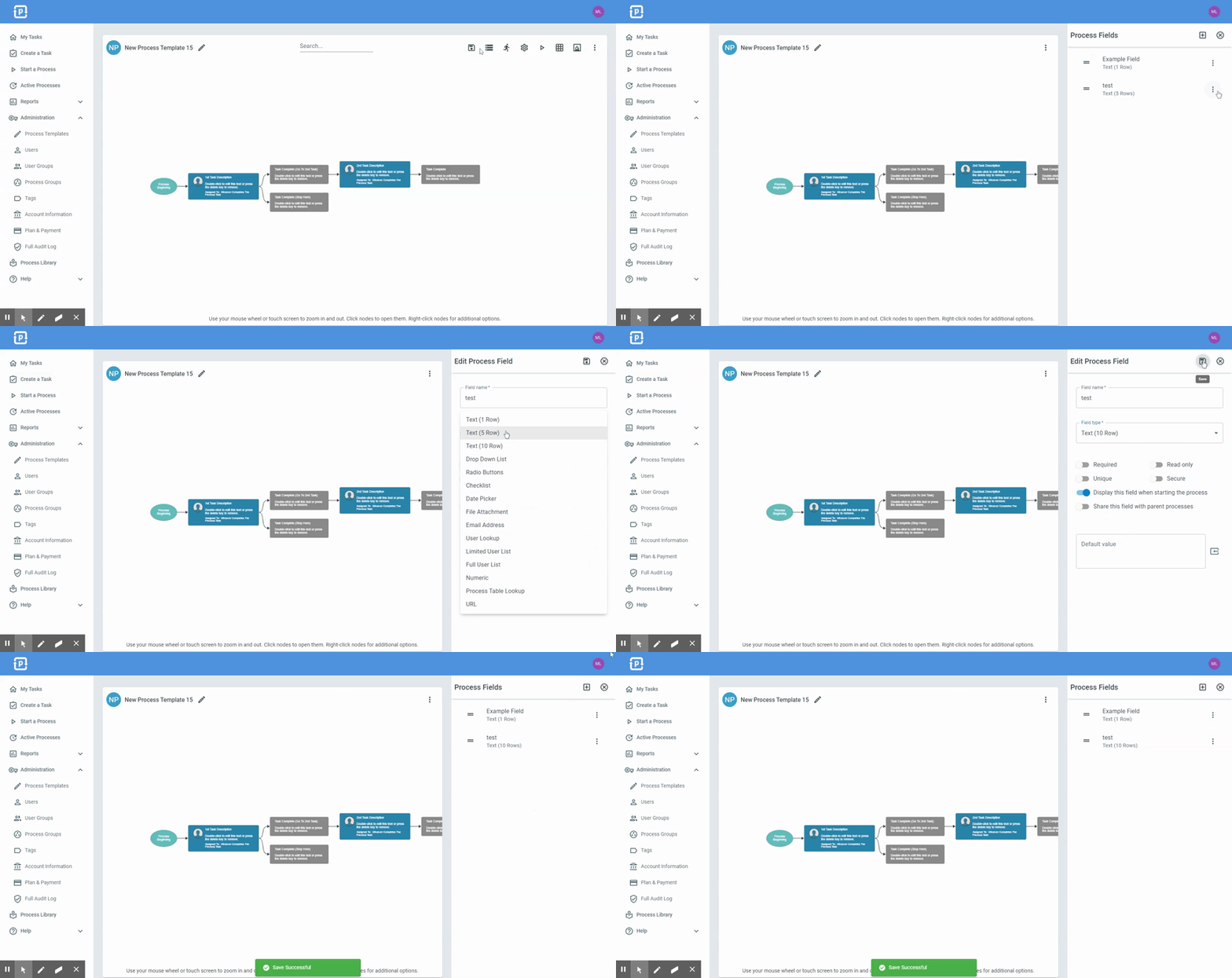
Types of Process Fields
Section titled “Types of Process Fields”-
Text (Single Line) and Text (Multiline) - Fields for holding text. The single-line field holds up to 4,000 characters. The multiline field grows as you type and has no practical length limit, so it suits long notes, pasted documents, and anything an AI Employee writes back into the process - but only the first 4,000 characters of a field are searchable
-
Conversation - A running thread of messages that your team and your customers both add to. Each message can carry files, and nobody can change a message once it is posted. See Conversation Fields
-
Drop Down List - Displays a list of options, only one option can be selected.
-
Radio Buttons - Displays a multiple choice style list of options, only one option can be selected
-
Checklist - Displays a list of options, multiple options can be selected
-
Date Picker - A field that allows you to select a date
-
Time Picker - A field that allows you to select a time
-
Date/Time Picker - A field that allows you to select a date and time
-
Date List - A field that holds a list of dates
-
Merge Document Link - A field that holds a created ProcessPlan merge document
-
File Attachment - A field that stores a file. Files up to 1 GB are supported
-
Rich Text Editor - A field that allows you to add a text editor into your process
-
Email Address - A field that stores an email address. A valid email address must be placed into the field
-
User List (Lookup) - A field that allows the user to select from a list of all users in the account. This field can be filtered based on the value of another field
-
User List (Limited) - A field that allows you to select a user from a preselected user group
-
User List (All) - A field that allows you to select a user group and then a user
-
User List (Multiple) - A field that allows you to select multiple groups of users
-
User Role List - A field that allows you to select an option from a list of your user roles
-
User Group List - A field that allows you to select an entire user group
-
AI Employee List - A field that allows you to select one of your AI Employees
-
URL - A field that holds a URL. A valid URL must be stored in this field
-
Numeric - A field that holds a number. The number(s) in the field can be formatted for domestic and international formats
-
Percent - A field that displays its value as a percentage
-
Digital eSignature - A field that holds a person’s e-signature. People sign it on a public form that shows it, or on a Merge Document that has a signature block for it. A signature made on a Merge Document appears, with its SIG code, only on that document. A signature made on a public form appears on every Merge Document of that process. Everywhere else, such as on a task, the field shows the signature but can’t be signed, and nothing requires it
-
Signature Canvas - A field where the user draws their signature with a mouse, finger, or stylus
-
Sequential Number - This field adds the next number in a sequence to your Process field in each instance of your process. Users can determine where the sequence starts.
-
Sequential Number (Subprocess) - This field counts the number of times a subprocess has been started
-
Password - A field for holding passwords. Values in this field are hidden by default. Nobody can search, sort or look records up by a Password field, and when the AI Strategist or an AI Employee looks up a process it never sees the values in Password fields. See Where a protected value travels, and where it doesn’t
-
Unique Number - This field adds a unique number to your Process field in each instance of your process
-
Process Table Lookup (Single) - A field that pulls in or “Looks up” a single value from another process. Clicking the value in the process field will take you to the source process table
-
Process Table Lookup (Multiple) - A field that pulls in or “Looks up” multiple values from another process. Clicking the value in the process field will take you to the source process table
-
Process Table Checklist - A field that pulls in and allows you to select multiple values from another process
-
Process Table Query - A field that allows you to select specific instances of a process
-
Process Table Radio Buttons - A field that presents instances from another process as a multiple choice list, only one can be selected
-
Process Table Sum / Average / Count / Median / Distinct Count - Fields that calculate a value (a total, an average, a count, and so on) across instances of another process. Count needs no field of its own; the rest read a numeric field on that process
-
Process Table Min (Number) / Max (Number) - The lowest or highest value of a numeric field across the instances that match, such as the largest order on an account
-
Process Table Min (Date) / Max (Date) - The earliest or latest date across the instances that match, such as the next renewal date or the last time an order shipped. Pick the variant that matches the field you are reading, and the list of fields to choose from narrows to the ones it can read
-
Subprocess Launcher / Line Items - A field that allows you to add more instances to a process table of your choice
-
Merge Document Lookup (Multiple) - A field that allows you to select a merge document from a specific process
-
Parent Process Link - A process field that provides a link back to the parent process that initiated the current process
-
Process Instance Link - A field that holds a clickable link to any process instance
-
Process Name Lookup - A field that allows you to select one of your process templates by name
-
Section Header - This field will provide a header/divider for your process fields
-
Display Only Text - A field that displays text that can’t be edited
-
Display Only URL - A field that displays a URL that can’t be edited
-
Display Only File - A field that holds a file. Once uploaded, the file can be downloaded but not edited
-
Saved Data Query - A field that is populated based on a query that has been saved in ProcessPlan
-
Custom Data Query - A field that is populated by a data query that is entered on the Process Field
-
JavaScript Code Source - A drop down list whose options are produced by one of your saved JavaScript functions. See Populating Drop Down Options with JavaScript
-
Automated Action Button - A button in the process that runs an automated action when clicked
-
Serialized Data - A field that stores structured data for use by automations and integrations
-
ConnectWise Company / Contact / Opportunity / Service Ticket / Project Ticket / Agreement / Member / Board / Ticket Status / Ticket Type / Ticket Sub Type / Ticket Item / Work Type / Work Role - Fields that search your live ConnectWise data and store the record the user picks. These types appear only when your account is connected to ConnectWise. See ConnectWise Manage
Process Field Settings
Section titled “Process Field Settings”-
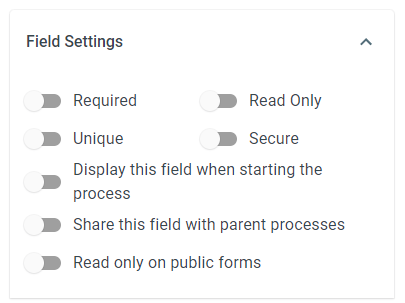
Required - A value must be entered in this field everywhere the field is shown, on every task that displays it and at process start if it is displayed there. To require a value on only one task instead, use that task’s Task Field Settings (see Controlling Process Fields)
-
Secure - With this option enabled, a user must Log in to ProcessPlan to see this value. The value will not be displayed in Task Assignment emails.
-
Unique - A field marked Unique must contain a unique piece of data for every instance of this process
-
Read Only - Once a value is entered in a read only field, it cannot be edited
-
Display this field when starting the process - This field will be displayed to be filled out when the process is started
-
Share this field with parent processes - If this field is mapped in any subprocess, the value is passed back to the parent process each time someone changes and saves the subprocess’s fields, and again when the subprocess completes. A shared file field gives the parent’s field the same files as the subprocess’s field. If the subprocess’s file field is empty, the parent’s files are left as they are.
-
Read only on public forms - On public forms, once a value is entered into this field, it can’t be edited
-
Merge into emails and documents as HTML - Available on text fields. Normally, any HTML tags in a text field’s value appear as written when the field is placed in an email or merge document. Turn this on when the field holds HTML you built on purpose, such as a table row that an automated action assembles for an email, and that HTML is applied instead. Anything in it that could run a script is still removed. Only turn this on for a field whose value comes from your own team or your own automations: someone filling the field on a public form could otherwise change how your emails and documents look.
Field Instructions
Section titled “Field Instructions”- Field Instructions - Text entered into this field will appear when the process field is hovered over
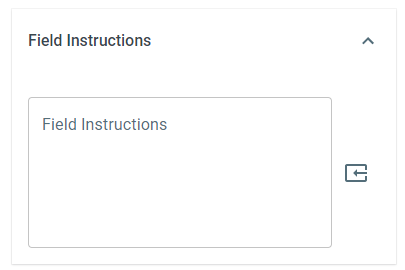
Calculated Value
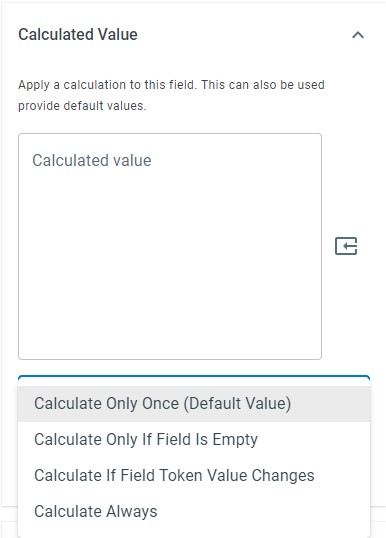
Section titled “Calculated Value”The calculated value field is where calculations can be performed using functions. The results of the calculation will be placed in the field. For more information on ProcessPlan functions, see Functions and Formulas. When and how often the calculations occur can be customized via the options below.
-
Calculate Only Once (Default Value) - The value in this field will be placed in the field as a default value
-
Calculate Only If Field Is Empty - The value in this field will be recalculated if the field is empty
-
Calculate If Field Token Value Changes - The value in this field will be recalculated only if the new value is different from the previous value
-
Calculate Always - The value in this field will be recalculated every time an update happens in the process
Validation Formula
Section titled “Validation Formula”The Field Validation Formula (Fail If False) prevents a field from being saved when the formula returns false. Use it to enforce rules a field type alone can’t express, such as requiring a number to fall in a range that depends on another field. Use the field token button to reference other fields in the formula.
Background Color Formula
Section titled “Background Color Formula”The Field Background Color Formula calculates a background color for the field, shown on both process forms and process table columns. The formula should return a color in hexadecimal format (for example #f0f0f0), or no value for no background. Background colors are useful for visualizing metrics and highlighting key values.
Hiding Process Fields
Section titled “Hiding Process Fields”Process fields can be hidden from tasks and public forms if the result of a formula is true
To enter a “hide” formula, do the following:
-
Open the desired template by clicking Administration > Processes > Template Diagrams > The card of the process you want to edit
-
Click the Process field icon in the menu in the top right. On the field you want to hide, click the 3 dot navigation button > Edit
-
Scroll to the Hide Field Formula section and enter your formula
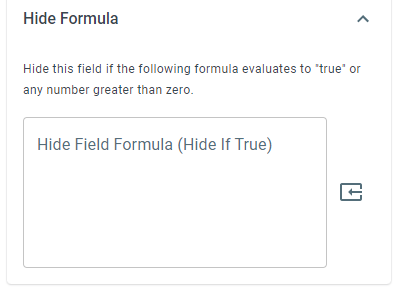
A hide formula can depend on who is looking at the field. For example, =NOT(=ISCONTEXT(<HR user group ID>)) hides a bank account field from everyone outside the HR group. The AI Strategist follows the same rule. When someone outside the group asks it about the process, it doesn’t see the field’s value either, and AI Employees follow the same rule. Neither can search, sort, or look up records by a field hidden this way.
Where a protected value travels, and where it doesn’t
Section titled “Where a protected value travels, and where it doesn’t”Two things keep a value from some of the people who can open the process: the Password field type, and a hide formula that depends on who is looking. Both are respected in the places where a value would otherwise be carried somewhere its reader never asked for it.
-
Process names built from your fields leave them out. A process name is shown in lists, in lookups and on every link to the process, to everyone who can see the process at all. The name is also built once and stored, so a protected value placed in it would stay readable from then on. If your name formula uses a Password field or a field hidden this way, that part of the name comes out blank. The same applies to the default name, which uses your first three fields.
-
The “all fields” blocks leave them out. The field tokens that insert every field, or every field with a value, skip both kinds, including when the block is pulled in through a lookup field. Those blocks take whatever fields the process happens to have, so nobody chose to include the protected ones. A field token that names one field is a deliberate choice and still works everywhere it always has, including emails, text messages, documents and AI prompts.
-
A calculated value can copy them only into a field protected the same way. A Password can be copied into another Password field, and a value hidden by a who-is-looking formula can be copied into a field that carries its own who-is-looking hide formula. Anywhere else the copy arrives blank, because in an ordinary field the value would be visible to everybody. The same applies when a subprocess’s field mapping copies a field, or passes a text value, into the subprocess; a protected file field’s files are not carried over either. When a subprocess shares a protected field back to its parent, a parent field that is not protected the same way keeps its own value. To make such a copy work, give the destination field the same protection.
-
The AI Strategist doesn’t break its findings down by them. When it looks for a pattern, it compares groups of records: by region, by owner, by status. It leaves these fields out of that comparison, because a finding is written once and read by everybody, so there would be nobody left to hide the value from. A field hidden from everyone equally, by a formula about the record’s own values rather than about who is looking, is still compared as usual.
-
Records can’t be searched or sorted by them. Filtering or sorting a process table by a Password field, or by a field that is hidden from you, isn’t answered: the rows that came back would spell the value out one guess at a time. Somebody the field is not hidden from still filters and sorts by it as usual, and automations are unaffected. This covers public tables too: a visitor can’t search or sort by a field your hide formula keeps from them, while a filter you saved on the public table itself keeps working, because you chose that one.