
=LEFTOF
The =LEFTOF function returns all text that appears to the left of a specified character or word within a text value.
Syntax
Section titled “Syntax”=LEFTOF(ReturnLeftOf; SearchInString)Parameters
Section titled “Parameters”-
ReturnLeftOf
The character or text to locate. All characters to the left of this value will be returned. -
SearchInString
The text string (or field value) to search within.
How It Works
Section titled “How It Works”-
Scans the text string from left to right
-
Finds the first occurrence of the ReturnLeftOf value
-
Returns all characters to the left of that occurrence
-
If the ReturnLeftOf value is not found, the function returns an empty value
-
Only the first occurrence of the search value is used; subsequent matches are ignored
Usage Notes
Section titled “Usage Notes”-
Spaces and special characters are included in the result
-
Works with text fields or text-converted numbers
-
Formula functions are case sensitive and must be written in ALL CAPS
Examples
Section titled “Examples”To return everything to the left of the @ symbol in an email address:
=LEFTOF("@"; [[Email Address]])This returns the username portion of the email address.
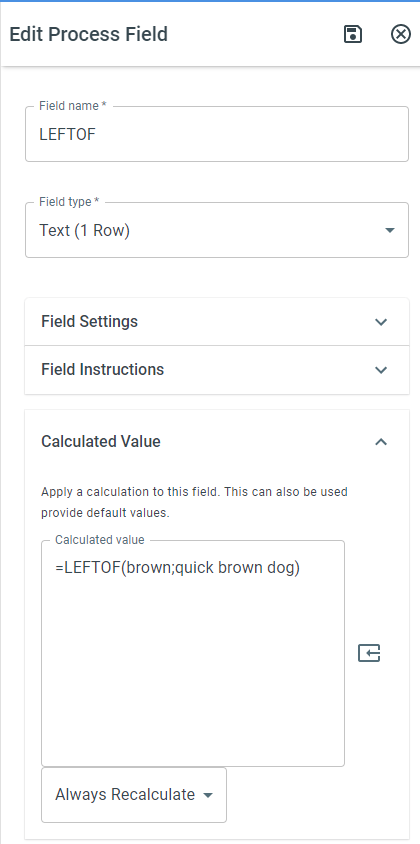
In the example above, the function will return quick because it is to the left of the search text brown.
Keywords
Section titled “Keywords”LEFTOF, text extraction, substring, string functions, email parsing, text manipulation, calculated value, formula function