
Controlling Knowledge Document Status
Knowledge Base documents can be published or unpublished at any time. Unpublished documents appear in the Under Review report.
To control the status of an existing Knowledge Document, do the following:
-
Log in to your account
-
Find the Progress Diagram view of the Knowledge Document you want to edit > Click the 3 dot button at the far right > Process Settings > Toggle Published in Knowledge Base
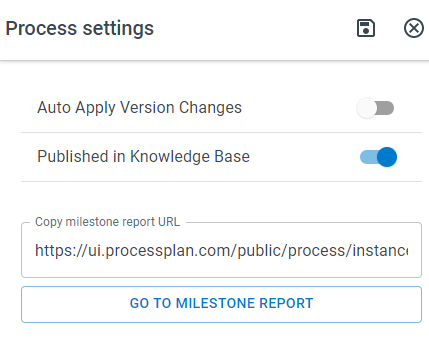
Controlling Default Knowledge Base Status
Section titled “Controlling Default Knowledge Base Status”To control the default status of Knowledge Documents on a template, do the following:
-
Log in to your account
-
Navigate to the Process Template (Administration > Processes > Template Diagrams) attached to the Knowledge Document you’re working with.
-
Once the Process Template is open, click Template settings > Knowledge Base Settings > Toggle Publish Document Immediately
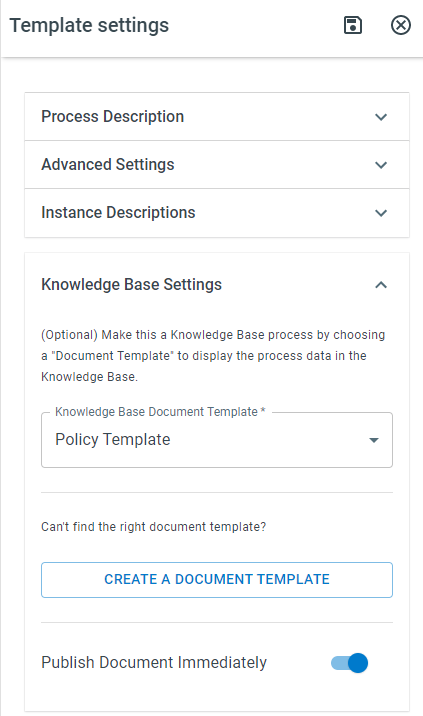
Controlling Knowledge Document Status via Automation
Section titled “Controlling Knowledge Document Status via Automation”Document Status can be toggled with an Automated Action. To toggle document status via automated action, do the following:
-
Log in to your account
-
Open the process template associated with the knowledge document you want to work with
-
Click Automated Actions > New Action
-
Select Automate ProcessPlan as your action type > Select your trigger > (Optional) Add any conditions
-
In your Action setup step, select Process: Update Knowledge Base Status > Select Yes or No in the Knowledge Base Document Published field
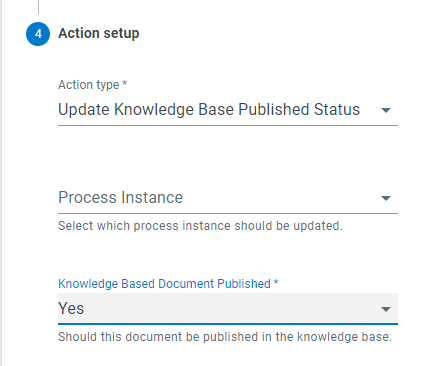
Viewing Unpublished Documents
Section titled “Viewing Unpublished Documents”To view Unpublished Documents, do the following:
-
Log in to your account
-
In the left-hand menu, click Knowledge Base > Under Review