
Active Process Report
The Active Process Report shows all processes currently running in your organization.
To access the Active Processes report, do the following:
-
Log in to your account
-
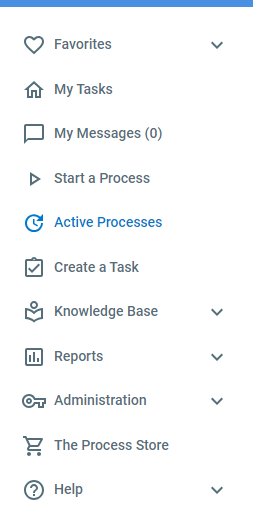
Click Active Processes in the left hand Navigation Menu
Information on the page
Section titled “Information on the page”-
Process Name - The name of the process that is active
-
Process Fields - The process fields of the active process
-
Assigned Person - The user that the currently pending task is assigned to
-
Assigned Group - The user group of the user that the currently pending task is assigned to
-
Pending Task - The task description of the pending task within the process
-
Pending Tags - The tag assigned to the pending task within the process
-
% Complete - The completion percentage for the current process
-
Process Group - The process group that this process is a part of
-
Updated On - The date the process was last updated
-
Started Date - The date the process was started
Navigation on the page
Section titled “Navigation on the page”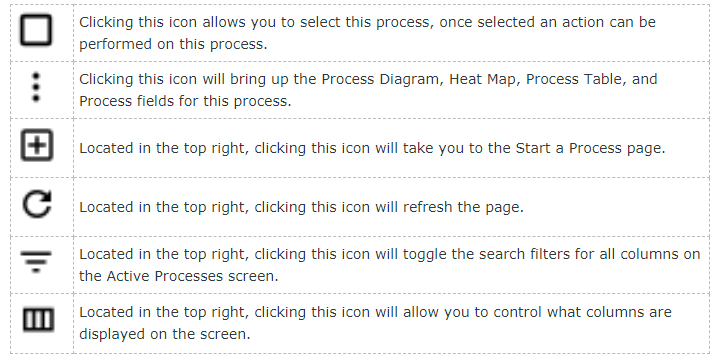
-
Checkbox - Clicking this icon allows you to select this process. Once selected, an action can be performed on it.
-
Navigation button - Clicking this icon will bring up the Current Task, Process Diagram, Calendar, Heat Map, Process Table, and Process Fields options for this process.
-
Plus button - Clicking this icon will take you to the Start a Process page.
-
Refresh button - Clicking this icon will refresh the page.
-
Filter button - Clicking this icon will toggle the search filters for all columns on the page.
-
Column button - Clicking this icon will allow you to control what columns are displayed on the screen.