Managing AI Employees
You can view the AI Employees on your account, view AI Employee Tasks, or view past AI Employee Task history by accessing the AI Employees section in ProcessPlan. To access the AI Employees section, click Administration > AI Employees.
Adding, changing, or deleting an AI Employee, its jobs, or their actions requires the Edit Process Templates permission (see User Groups (and Security Groups)).
Managing AI Employees
Section titled “Managing AI Employees”To view the AI Employees on the account, do the following:
-
Log in to your account
-
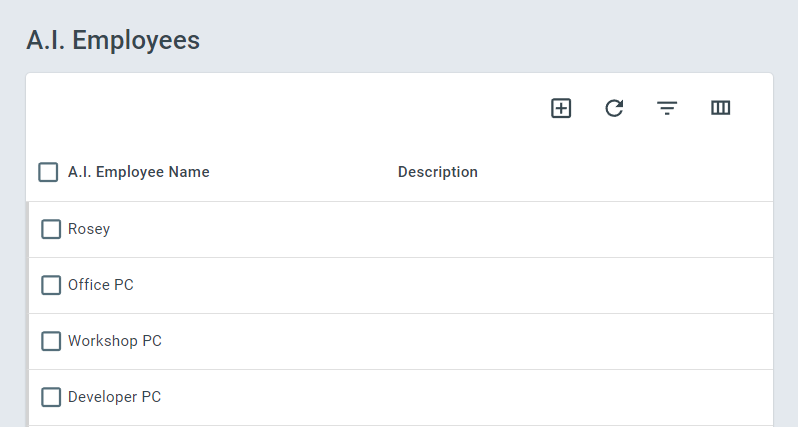
Click Administration > AI Employees > AI Employees
To delete an AI Employee:
- Click the checkbox to the left of the AI Employee you want to remove > Click the Trashcan that appears at the top of the screen
Viewing AI Employee Jobs
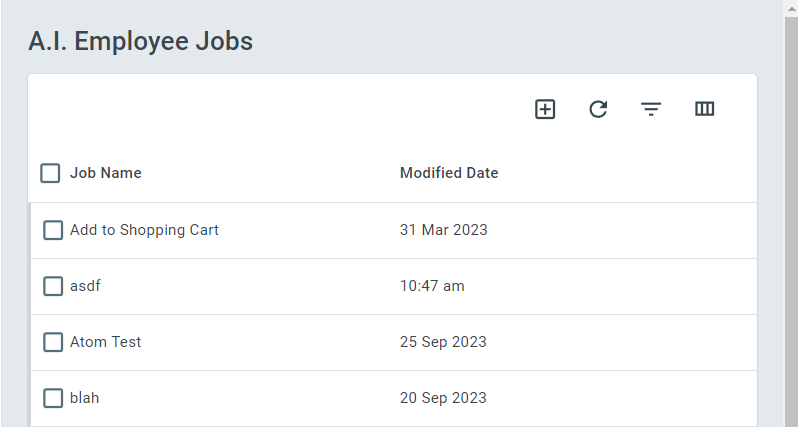
Section titled “Viewing AI Employee Jobs”To view all the AI Employee Jobs in your account, do the following:
-
Log in to your account
-
Click Administration > AI Employees > AI Employee Jobs
Viewing AI Employee Task History
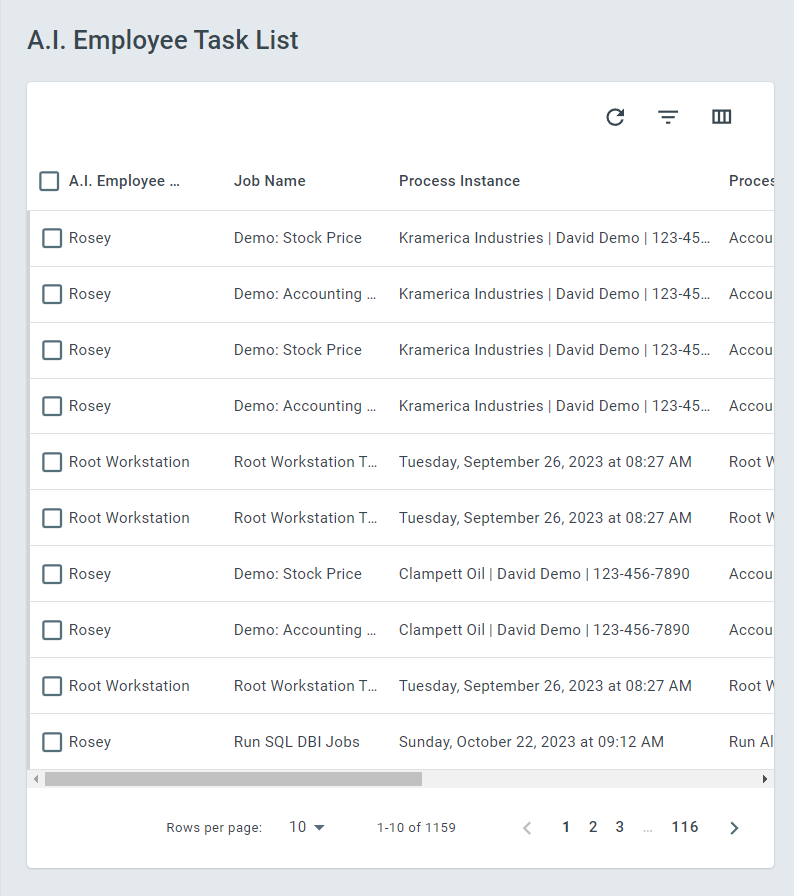
Section titled “Viewing AI Employee Task History”To view the history of all AI Employee Tasks on the account, do the following:
-
Log in to your account
-
Click Administration > AI Employees > AI Employee Log
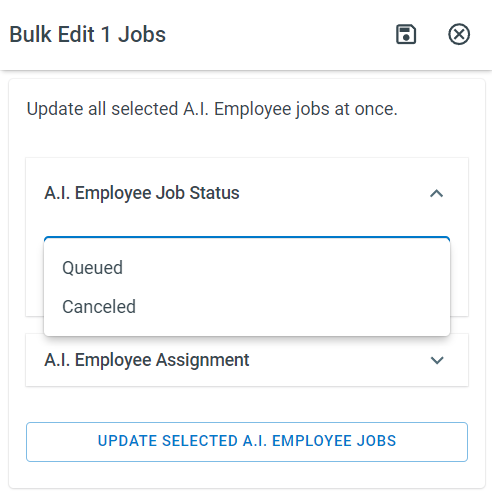
To Edit an AI Employee Task’s Status:
Section titled “To Edit an AI Employee Task’s Status:”-
Click the checkbox to the left of the AI Employee Task you want to edit
-
Click the AI Employee Job Status dropdown menu
-
Select the status that you want to change the task to
To View a Task’s Running Information:
Section titled “To View a Task’s Running Information:”-
Click on the task that you want to view the information of
-
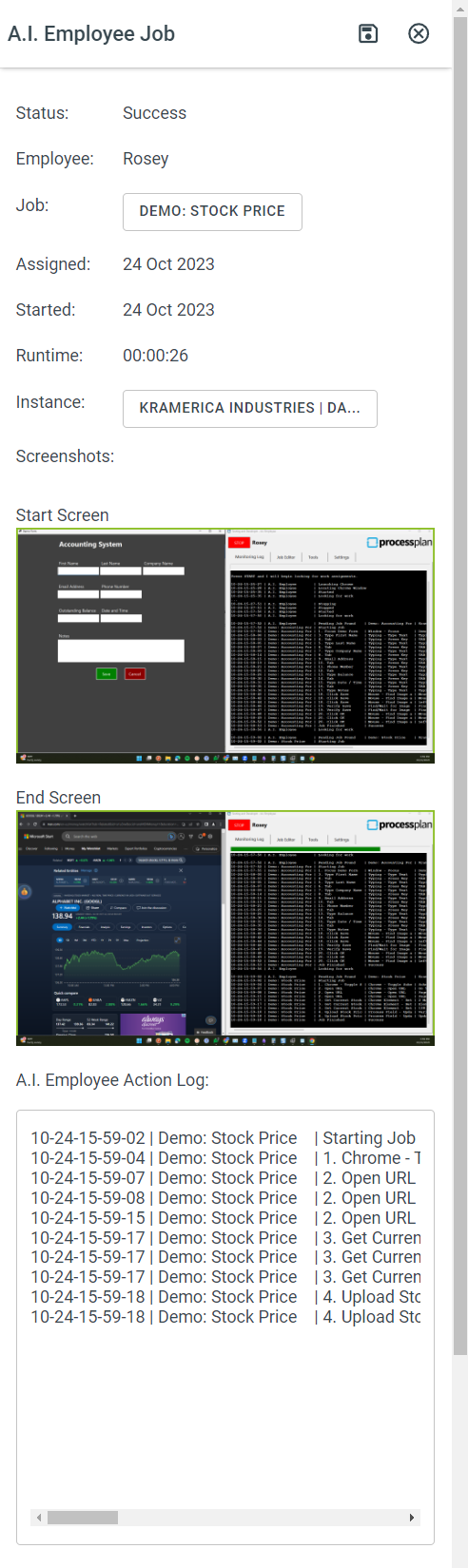
Review the various collected information from the task’s running process, which includes
-
Status
-
AI Employee Name
-
Job Name
-
Assigned Date
-
Started Date
-
Total Runtime
-
Process Instance Title
-
Start and End Screen Screenshots
-
AI Employee Action Log
-