
Controlling Process Fields
Controlling What Fields are Displayed
Section titled “Controlling What Fields are Displayed”To control what fields are displayed on a task, do the following:
-
Click Administration > Processes > Template Diagrams
-
Click the Process Template you want to edit
-
Right click on the task you want to edit > Task Field Settings
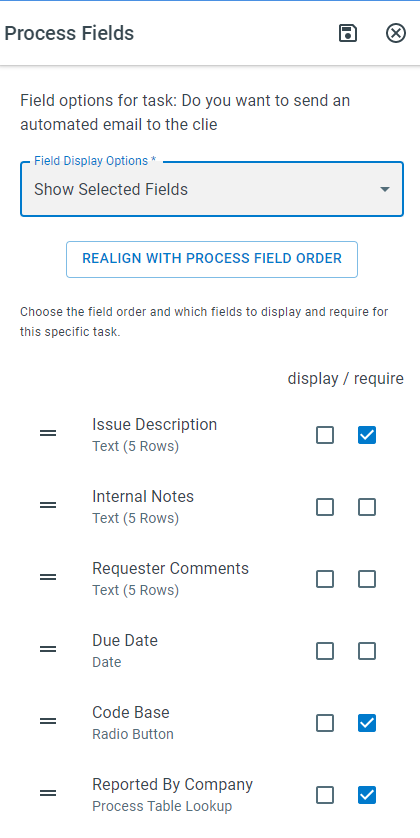
Field Display Options
-
Show All Fields - All fields will be displayed
-
Hide All Fields - No fields will be displayed
-
Show Selected Fields - Only selected fields will be displayed
-
Show All Fields w/Values + Selected Fields - Fields with values and selected fields will be displayed
-
Show Selected Fields if they also have Values - Selected Fields will only be displayed if they have a value
Be sure to click Save at the top of the panel
Controlling what fields are displayed at Process Start
Section titled “Controlling what fields are displayed at Process Start”To control what fields are displayed at the start of the process, do the following:
-
Click Administration > Processes > Template Diagrams
-
Click the Process Template you want to edit
-
Click the Process Fields button > 3 dot button to the right of the field you want to display > Edit
-
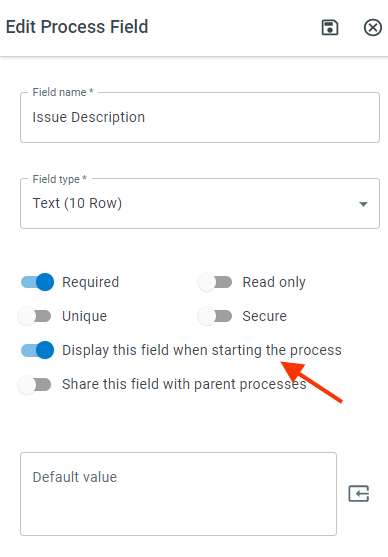
Toggle the Display this field when starting the process option
Controlling what fields are required
Section titled “Controlling what fields are required”A field does not have to be required for the whole process. You can require it on the one task where the value should be known, which is useful when a value is not available when the process starts and is collected later as the work moves along.
To control what fields are required on a task, do the following:
-
Click Administration > Processes > Template Diagrams
-
Click the Process Template you want to edit
-
Right click on the task you want to edit > Task Field Settings
-
Check the Required box next to the field you want to require on that task