
Email Action Type
ProcessPlan is able to automatically send emails based on action triggers.
To set up an Automated Action email, do the following:
-
On the desired template, click the Automated Actions icon in the Designer Template Menu or right-click on any white space and select Automated Actions
-
Select Automate an Email as your Action Type
-
Select a trigger and add any conditions
-
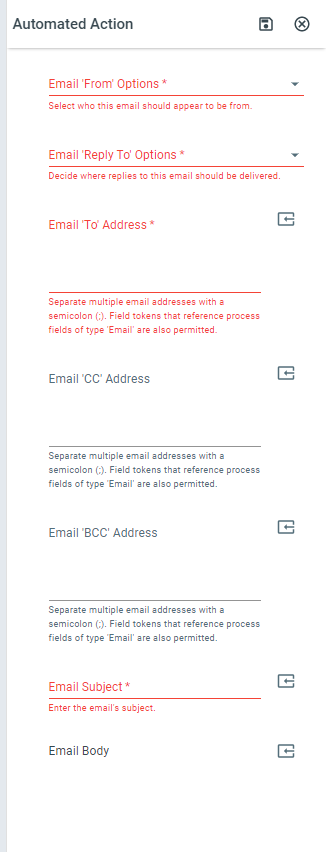
In Action setup, complete the email settings below
-
Email ‘From’ Options - Select who this email should appear to be from: the current user’s name, the process initiator’s name, the current account name, or another name you specify in the ‘From’ Name field
-
Email ‘Reply To’ Options - Decide where replies should be delivered: the current user’s personal inbox, the process initiator’s personal inbox, the current process, or another address you specify. Two choices route replies straight into the process, where they can trigger the “When an Incoming Email is Received” trigger:
- The Current Process (Messages) - Each reply is saved as a process message.
- The Current Process (a Conversation Field) - Each reply is posted as a new message in one of the process’s Conversation fields. If the process has no Conversation field yet, replies are saved as process messages until you add one.
-
Replies Go Into - Shown when The Current Process (a Conversation Field) is selected and the process has a Conversation field. Pick the Conversation field that replies to this email are posted in, for example a “Vendor Messages” field rather than “Customer Messages”. Leave it blank to use the first Conversation field
-
Email ‘To’ Address - The recipient(s). Separate multiple email addresses with a semicolon (;). Field tokens that reference process fields of type Email are also permitted
-
Email ‘CC’ Address and Email ‘BCC’ Address - Optional copy recipients, same format as the To address
-
Email Subject - The email’s subject
-
Email Body - The body of the email, written in a rich text editor so you can format the message
Attaching files from the process
Section titled “Attaching files from the process”An automated email can send the files held in a process, not just a link to them.
In the Email Body, use the Insert Field Token button and choose the (Attachment) token for the file attachment field you want to send - for example Field: Signed Contract (Attachment). Every file in that field is attached to the email.
A few things worth knowing:
-
The token itself does not appear in the message. It is replaced by the attachment, so you can put it anywhere in the body - on its own line at the bottom is the usual choice.
-
If the field holds several files, all of them are sent.
-
You can use more than one attachment token in the same email, so files from different fields can go out together.
-
If the field is empty, the email is still sent, just without an attachment.
Note that (Attachment) and (Value) do different jobs. (Attachment) sends the file itself, and only the Email and AI Prompt actions understand it. (Value) refers to the file rather than sending it, which is what you want when you are copying files between fields with a ProcessPlan action.
Which mailbox the email is sent from
Section titled “Which mailbox the email is sent from”The Email ‘From’ Options set the name the recipient sees. The mailbox the email is actually sent from depends on your setup:
-
By default, ProcessPlan sends the email from its own address, with the name you chose. A short “Sent via ProcessPlan.com” line appears at the bottom.
-
If the Email ‘Reply To’ Address belongs to a user in your account who has their own SMTP settings saved, the email is sent from that person’s real mailbox instead, using their mail server. Nothing is added to the bottom of the message, because it is their mail server sending it, not ours.
So if you want an email to genuinely come from a person’s own address, save that person’s SMTP settings and point the Reply To at them. If you only want a different name on the message, the From options are enough on their own.
You can insert information from your processes into your emails by using the Insert Field Token button.
Optionally, use the Complete Task step to automatically complete a process task with a success or failure response once the email has been sent.
If the email cannot be sent, the action fails. That happens when the mail server refuses the message, when the attached files make it too large to send, or when every recipient has unsubscribed. The task is then completed with the Response on Failure, and the reason is recorded in the Instance Audit Log. Attached files count toward the size of the message, so for many or large files, include a link to them instead of attaching them.