
The Task Panel
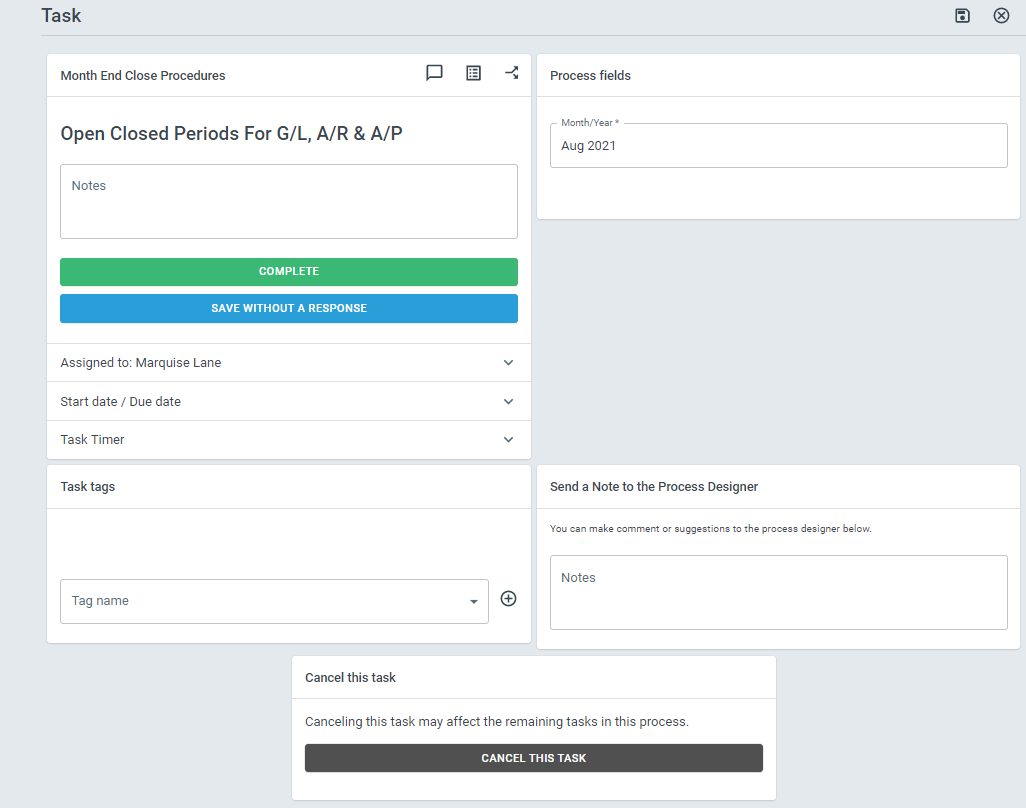
The ProcessPlan Task panel has several sections, each containing information or actions that users may find helpful.
Task Description & Responses
Section titled “Task Description & Responses”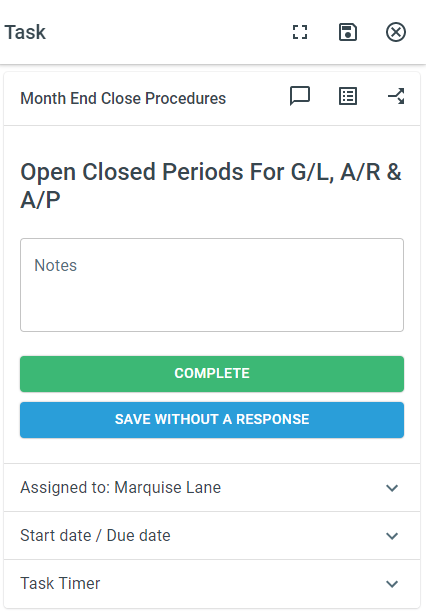
-
Template Name - This shows the template this task is a part of
-
Task Description - This shows the description of the task
-
Task Responses - Task Responses are green (by default) and are the options for completing this task.
-
Save Without a Response - This button will save any process fields or adjustments to due dates without submitting a response to the task.
-
Assigned to - This panel shows who this task is assigned to
-
Start/Due Date - This panel shows the Start/Due date on this task. This is also where you can adjust Start/Due dates.
-
Task Timer - This panel will show the time spent working on this task
Process Fields
Section titled “Process Fields”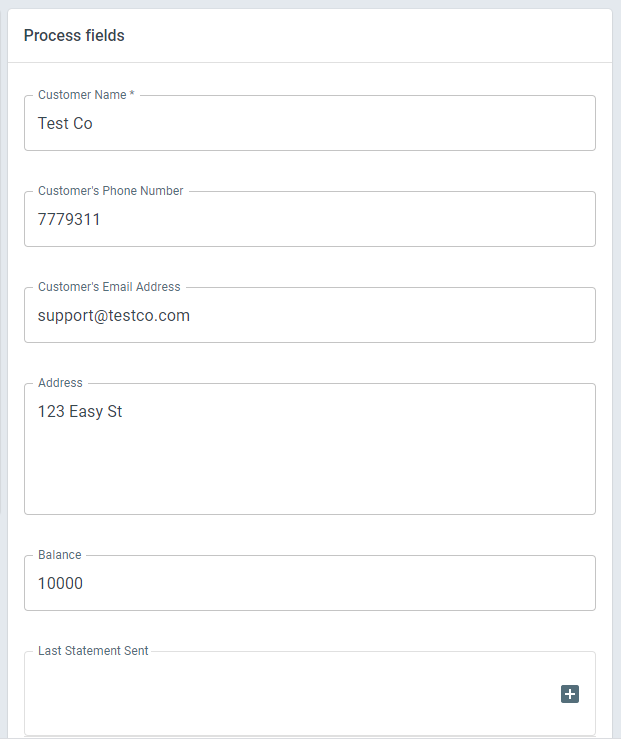
The Process Fields panel shows all of the process fields displayed on the task you’re working on.
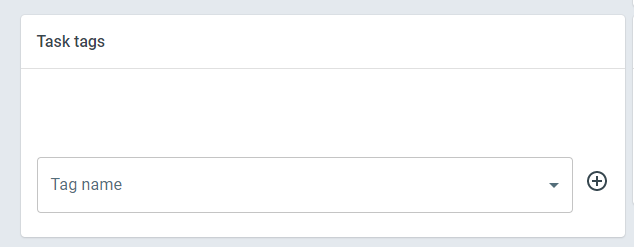
The Tags section shows which tags are attached to this task. You can also add a tag to a task from this section. Tags allow you to group tasks for batch working.
Contact the Process Designer
Section titled “Contact the Process Designer”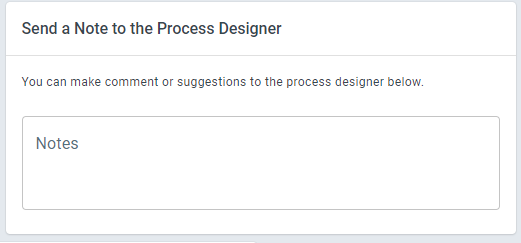
The Contact the Process Designer option allows users to leave suggestions for the template designer - for example, suggesting that a task be added to the process. The process designer will be able to see these notes, along with the task you were working on when each note was submitted.