The Milestone Report
The Milestone Report allows users, especially those outside of the organization, to see the status of a process.
To add Milestones to a process, do the following:
-
Click Administration > Processes > Template Diagrams > Click the card of the process you want to add Milestones to
-
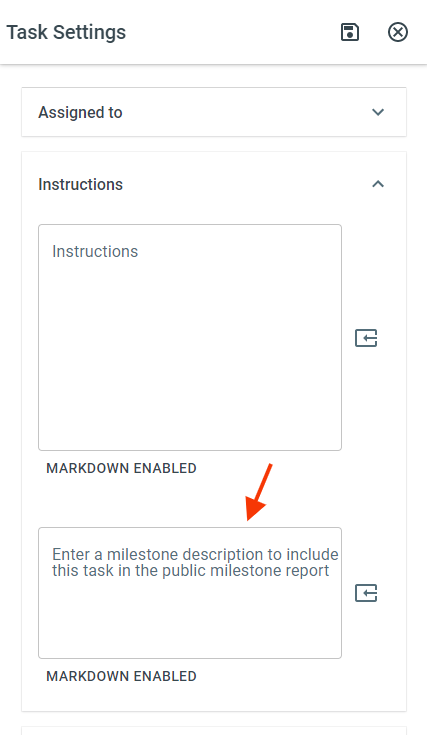
Right click on the task you want to make a Milestone > Select Task Settings > Enter your Milestone description in the “Enter a milestone description..” field
Accessing the Milestone Report
To access the Milestone Report for a process, do the following:
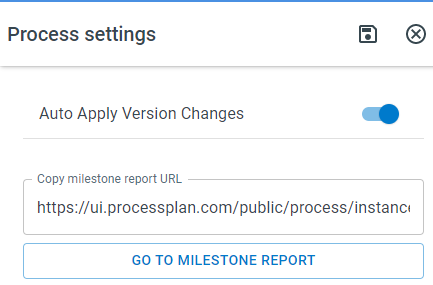
- Click Active Processes > Once the progress view appears, click the 3 dot navigation button in the top right > Process Settings > Go to Milestone Report
Adding the Milestone Report to Automated Emails
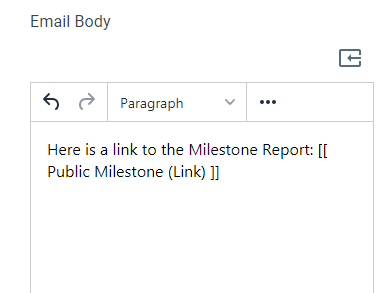
The Milestone Report can be sent in Automated Action emails. To insert a link to an Automated Action email, do the following:
-
Open the Process that you want to share a Milestone report for
-
Open (or create) an Email Automated Action and insert the Public Milestone (Link) field token