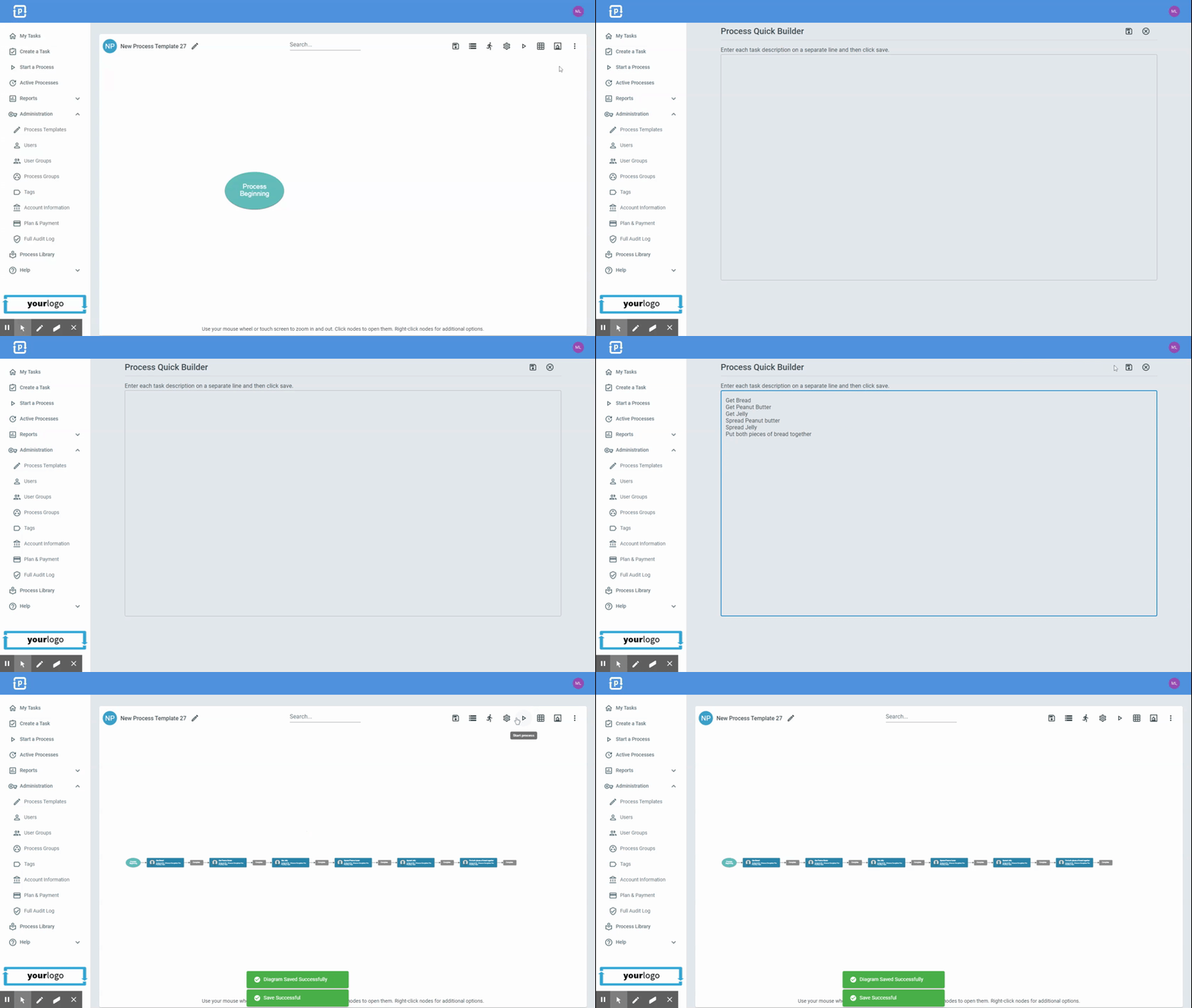
Using the Quick Diagram Builder
The Quick Diagram Builder gives you the ability to convert lines of text into Process Tasks. This can save a lot of time when building templates. The Quick Diagram Builder can be used to create a new template or to add to an existing template. Tasks imported with the Quick Diagram Builder have one “Complete” response, but they can be edited.
To use the Quick Diagram Builder to create a process, do the following:
-
Click Administration > Processes > Template Diagrams > New Process Template in the top right.
-
Click the 3 dot button in the top right > Quick Diagram Builder
-
Paste (or type) your text into the builder > Click Save
To use the Quick Diagram Builder to add to an existing process, do the following:
-
Click Administration > Processes > Template Diagrams > Click the card of the template you want to add to.
-
Click the 3 dot button in the top right > Quick Diagram Builder
-
Paste (or type) your text into the builder > Click Save
-
Imported tasks will be added to the end of the process.